You can export profiles from GoLogin with its own button or with its API, and the two give you different things. The button writes a CSV of settings that GoLogin can read back. The API returns every profile as a JSON record, with its fingerprint values and proxy. Neither carries cookies, which GoLogin exports per profile from a separate menu.
Export profiles from GoLogin to CSV
GoLogin documents the button on its Profile Export & Import page (read 2 November 2026):
- Open All profiles and select one or more profiles.
- Click Export profiles.
- Save the CSV file.
Read the overview before you rely on it. GoLogin is plain about the limits: the CSV holds the profile name, proxy settings, folders and tags and basic environment settings, and leaves out cookies, sessions, login state and the full fingerprint. A profile made from it "will behave like a brand-new environment with no prior activity", and GoLogin says the CSV "is not a backup method".
So the CSV is good for moving setups between GoLogin workspaces. It is not a copy of your accounts.
Export cookies from a GoLogin profile
Cookies are what keep an account signed in, and GoLogin exports them one profile at a time (cookies import and export):
- Click the three dots on the profile and choose Cookies.
- Press Export.
- Choose a folder and click Save.
Name each file after its profile. For a large library the API is quicker: GET /browser/{id}/cookies returns the profile's cookies as a JSON array.
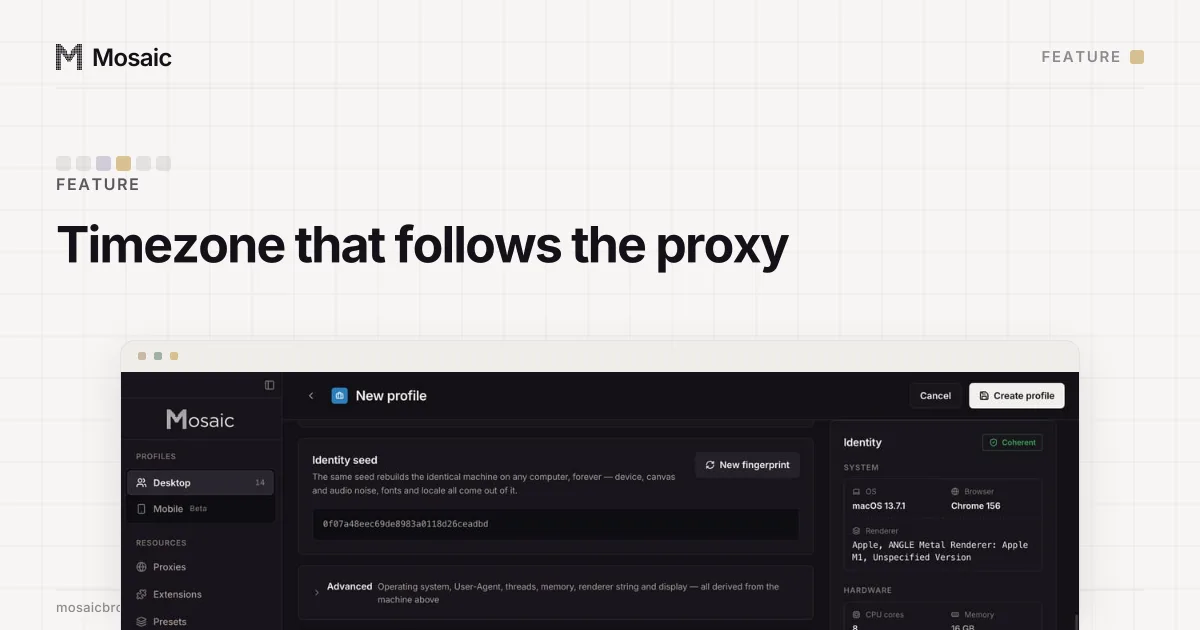
Timezone, language and location come from where the proxy comes outIn Mosaic: Matched to the exit. Timezone, language and location follow the proxy. Free holds 3 profiles. Pro is $49 a month for any number.
Mosaic is a desktop app
Email yourself the link and open it on your computer.
How it works: Matched to the exit
Export GoLogin profiles as JSON with the API
The API needs a token, which the quickstart says is in the dashboard under Settings › API. It goes in an Authorization: Bearer header to https://api.gologin.com.
GET /browser/v2 lists every profile across workspaces, 30 per page, inside {"profiles": [...]}. GET /browser/{id} returns one profile in full: name, notes, OS, start URL, the navigator block with User-Agent, resolution, language, cores and memory, and the proxy with its mode, host, port and credentials. Take the ids from the list and save each full record:
TOKEN="your-gologin-api-token"
API="https://api.gologin.com"

mkdir -p gologin
for page in 1 2 3; do
  curl -s "$API/browser/v2?page=$page" -H "Authorization: Bearer $TOKEN" \
    | jq -r '.profiles[].id'
done > ids.txt

while read -r id; do
  curl -s "$API/browser/$id" -H "Authorization: Bearer $TOKEN" > "gologin/$id.json"
  curl -s "$API/browser/$id/cookies" -H "Authorization: Bearer $TOKEN" > "gologin/$id.cookies.json"
done < ids.txt
Raise the page loop until a page comes back with no profiles; 3 pages covers 90. Of the five products Mosaic imports from, GoLogin needs the least reshaping: the full record is a bare JSON object, not wrapped in an envelope, and Mosaic recognises it as it is. We checked the list reply as well on 2 November 2026, and Mosaic recognises that too, but the per-profile record is the one GoLogin documents with the start URL and proxy credentials in it.
What a GoLogin profile keeps in Mosaic
Mosaic identifies a GoLogin record by its fields, never by the file name, and tags each imported profile "GoLogin". It keeps the name, the notes, the start URL and the proxy when its mode is HTTP or SOCKS. GoLogin's own built-in proxy modes are not an address Mosaic can use, so those profiles arrive without one. From the fingerprint it takes the OS, User-Agent, language, cores, memory and screen size. The import dialog names what it leaves: GoLogin's canvas and WebGL noise mode, its folders and its bookmarks.
Everything else is drawn from real hardware records, including the timezone, which is not among the GoLogin fields carried. When a profile with a proxy starts, Mosaic matches the timezone, language and location to the exit it measures, which is the comparison a scanner makes first.
Import GoLogin profiles into Mosaic
- On Mosaic's profiles screen, press Import.
- Choose every
gologin/<id>.jsonfile, leaving out the.cookies.jsonones, or drop them on Import profiles. Each should read "Detected as GoLogin". - Press Import.
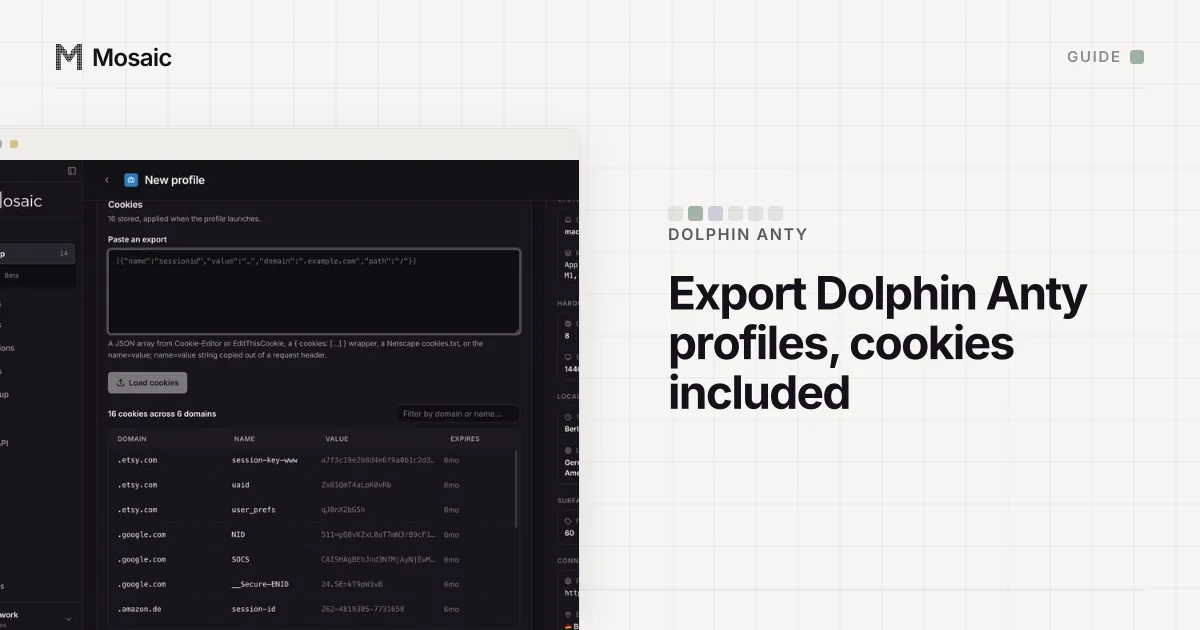
- Open each profile's editor at Cookies, paste the matching
.cookies.jsoninto Paste an export, press Load cookies and save.
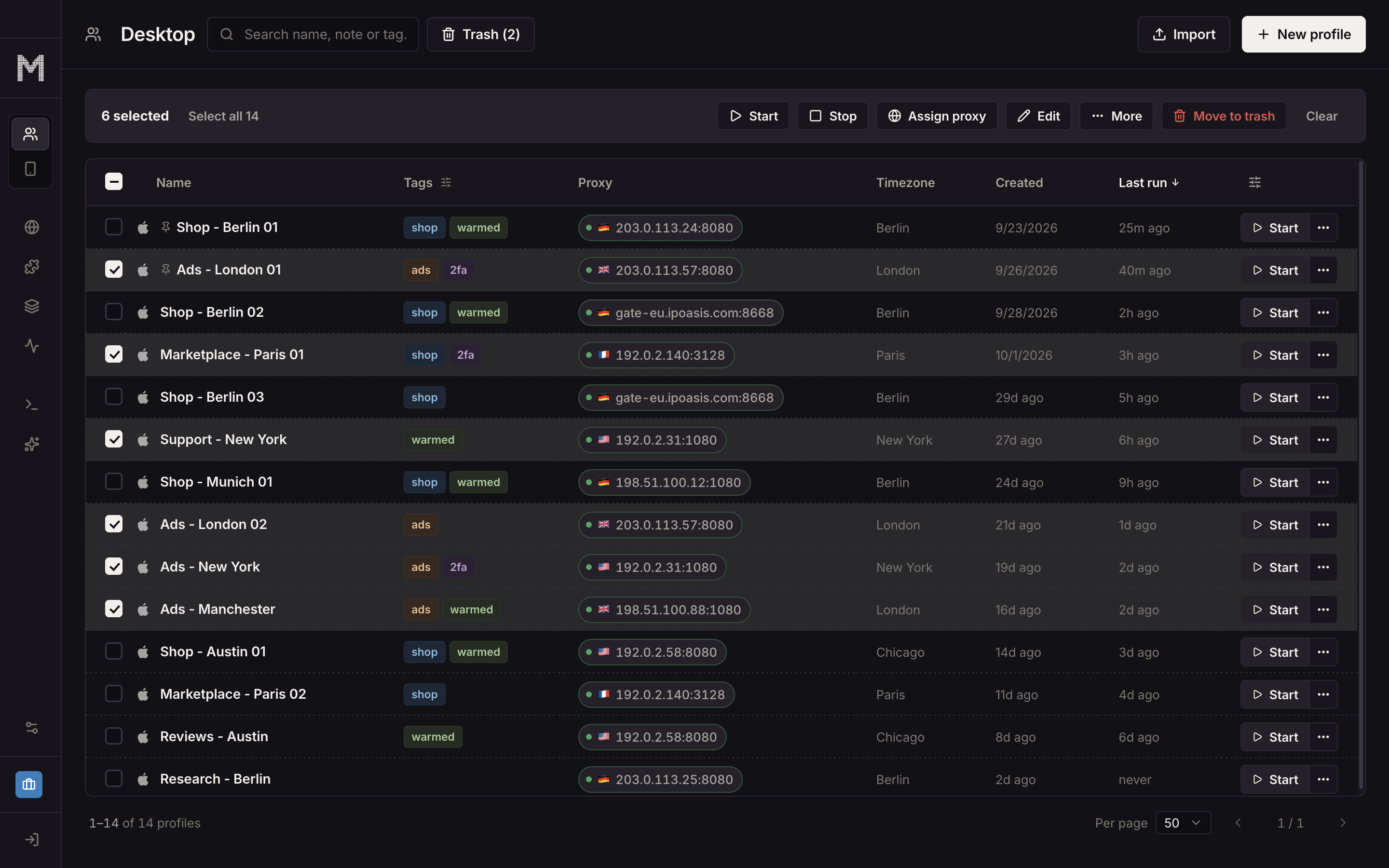
A GoLogin profile whose OS is Windows, imported on a Mac, comes in with a warning that names it, because the fonts and how they are drawn come from the real machine and no setting reaches them. Such a profile matches less well than a macOS one, and keeping it as Windows is still allowed. If you would rather it matched the Mac, open it and set its Platform to macOS: the machine is drawn again for this computer, and its cookies stay.
Imported profiles count against your plan the same as new ones, and each file is checked whole before the first profile is made. Mosaic Pro has no per-profile price; the details are on the pricing page.
Sources
- GoLogin docs: Profile Export & Import, read November 2, 2026
- GoLogin docs: Export & Import overview, read November 2, 2026
- GoLogin docs: Cookies import and export, read November 2, 2026
- GoLogin API: Get profile by id, read November 2, 2026
- GoLogin API: Get all profiles, read November 2, 2026
- GoLogin API: Quickstart, read November 2, 2026