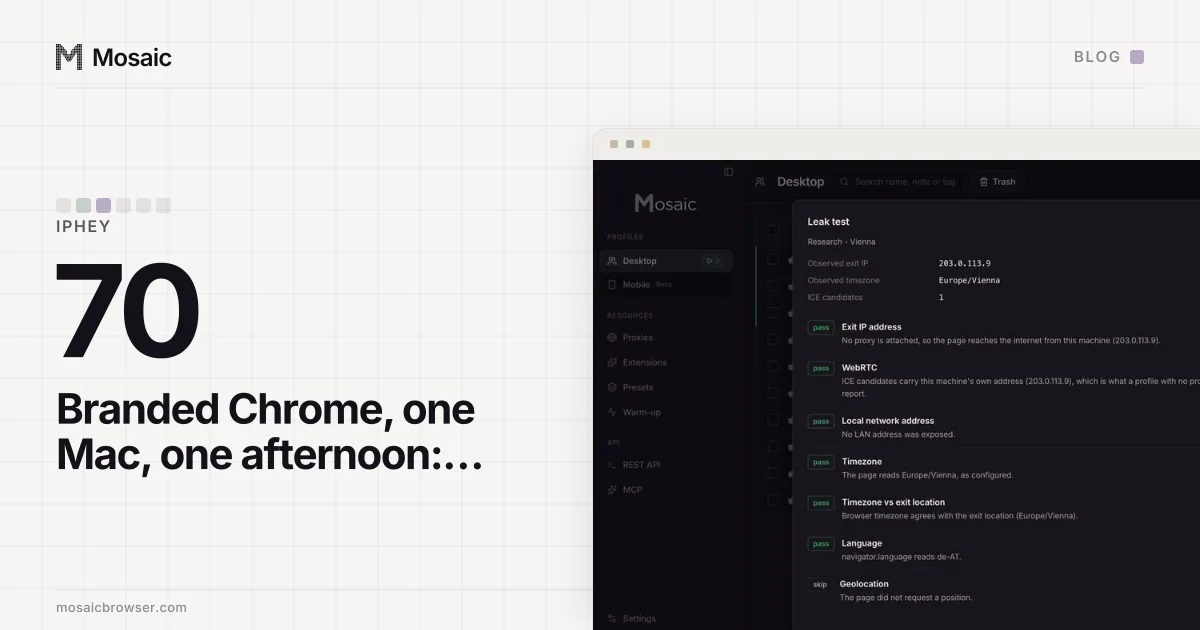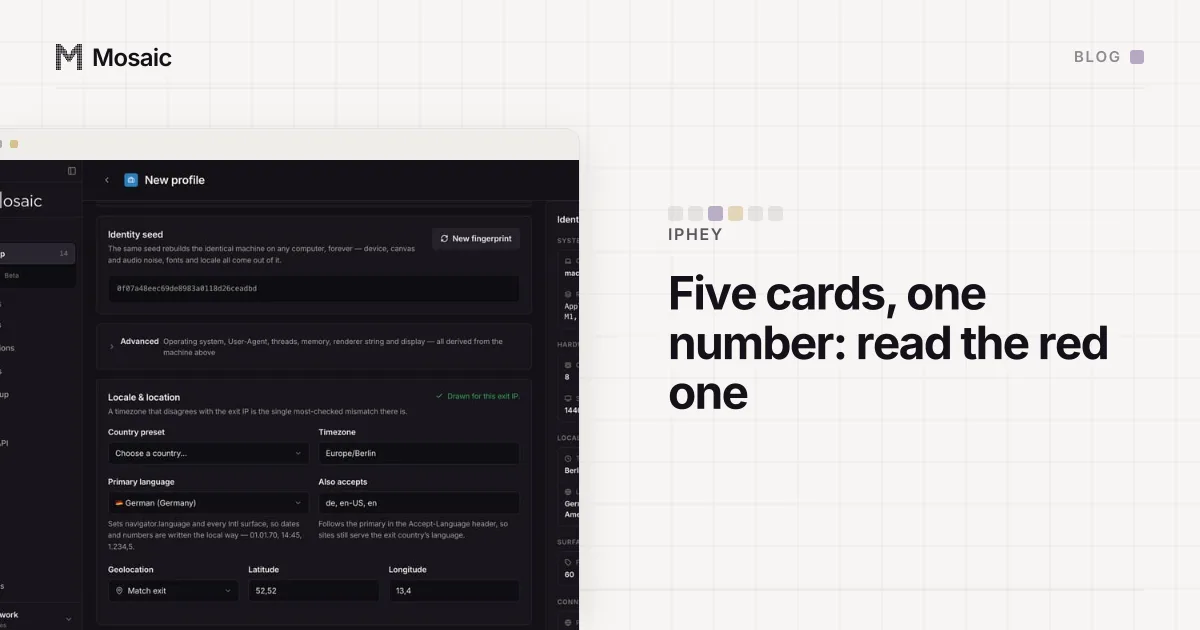
A low IPHey MX score is a total, and the cards under it are where the reason is. IPHey checks five things (Browser, Location, IP address, Hardware, Software) and each red card prints a one-line reason. We measured unmodified, branded Google Chrome scoring 100, 100, 70 and 0 on one Mac in one afternoon. So before you change anything, find which card went red and read its line.
The same Chrome scored four different numbers
We ran the control we should have started with: Google's own Chrome, untouched, on the machine we build on, several times over an afternoon.
run 1   100
run 2   100
run 3    70   SOFTWARE "Click here to see", red, on real Chrome
run 4     0   read taken before the page finished
Nothing about the browser changed between those runs. That afternoon, and what it did to an investigation that had treated 100 as a constant, is written up in the score moved with the address, not the browser. This piece is the practical half: what to read when your own number comes back low.
A 0 is usually the page, not you
IPHey renders a template first and fills the cards in afterwards. Until it has, every card reads Temporary value and the headline says 0 MX SCORE. A script that reads the page text too early, or a person who screenshots it in the first seconds, records that template as a result. Our detection runner gives IPHey 20 seconds to settle and then reads the cards by name, never the page text with a regular expression. If you are reading it by eye, wait until every card has a value in it.
Every profile is drawn from one real computer, not from separate listsIn Mosaic: Machines that exist. GPU, screen, CPU and fonts from one real device. Free holds 3 profiles. Pro is $49 a month for any number.
Mosaic is a desktop app
Email yourself the link and open it on your computer.
How it works: Machines that exist
A low IPHey MX score: which card is red?
Each red card has a detail line, and the line is specific. These are the ones we have seen ourselves, with what turned out to be behind them.
Browser: "inconsistent browser fingerprint (whale)"
This was red on every desktop profile we made for a long time, at MX 90, Unreliable. Google's unmodified Chrome for Testing got the identical line on the same exit in the same minute, so it was never about a value we had set on a profile. It came from something both builds share: neither is Google-signed Chrome, and the Widevine module in a browser without Google's signature sends a device certificate in the clear. The long version, through the speech voices and the field-trial APIs on the way, is the whale signal, followed to the end. If your Browser card says this, compare against a stock Chrome before you touch any profile setting.
Location: "masked or inconsistent location data (light)"
This is the browser's own idea of where it is (timezone, geolocation, language) disagreeing with where the address is. We saw it on stock Chrome for Testing sent through a US residential exit from a Mac in Austria: Location red, MX 80. Our profile on the same exit had a green Location card, because a Mosaic profile takes its timezone, language and geolocation from the exit it browses through. A red Location card is the cheapest one to fix and the most common.
IP address: the exit's own history
A residential address can already be listed as a proxy before you ever use it. We measured one in Wichita that several detectors knew, in the residential IP several detectors already knew. No browser setting changes that card. A different exit does.
Hardware and software
These read the machine: GPU, screen, fonts and the software the browser says it runs on. We have seen Software go red on real Chrome on one run out of four, which is why one red Software card on its own is a reason to run again rather than to rebuild anything. One result here did hold up across runs. On the same engine and the same exit, a fresh profile claiming macOS on a Mac scored 100/100 Trustworthy, and one claiming Windows scored 80/100 Unreliable. Fonts and the way the system draws them come from the real computer, and no setting reaches them.
What the labels mean
In everything we have recorded, 100 came with Trustworthy, and both 90 and 80 came with Unreliable. So the label tells you whether anything is red, and the number roughly tells you how much. Neither tells you which card, so read the card.
How we read a low score
- Wait until every card has a value. A
Temporary valueanywhere means the read is void. - Write down which cards are red and copy each one's detail line exactly.
- Open a plain Chrome on the same exit, in the same minute, and run it there too. A card that is red in both is about the address or the moment.
- Run it more than once. A card that changes colour between runs with nothing changed is flaky, which is neither a pass nor a fail.
- Only then change one thing, and measure again.
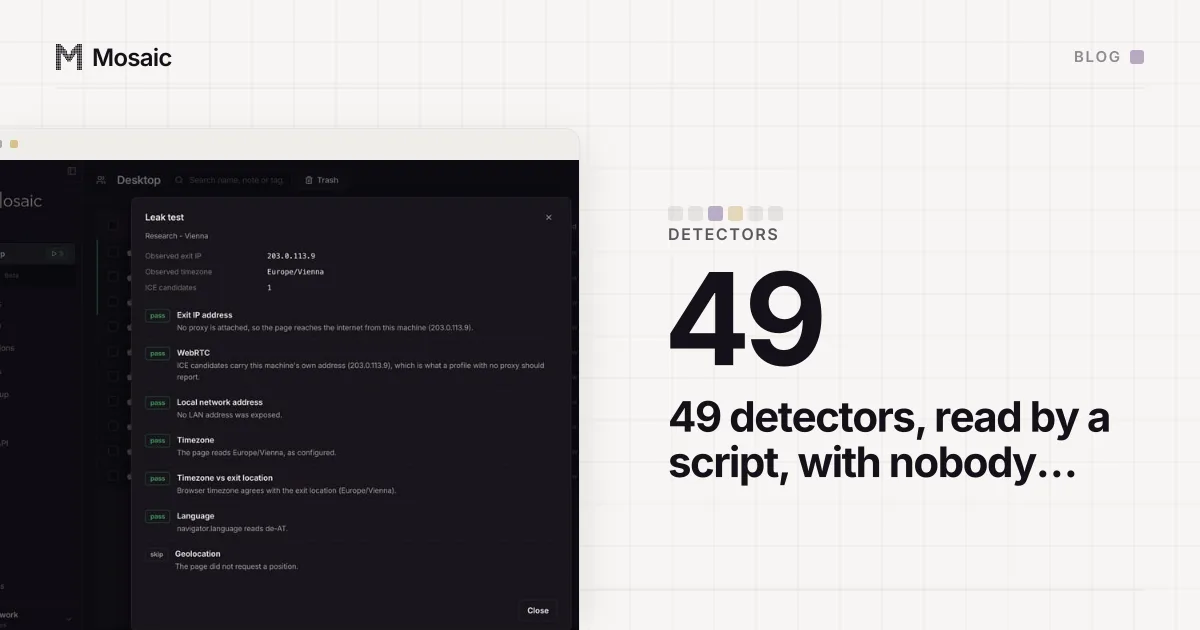
Our runner does steps 1 to 4 for every detector in its catalogue, and how it keeps a site that was down apart from a real failure is in running fingerprint tests unattended.