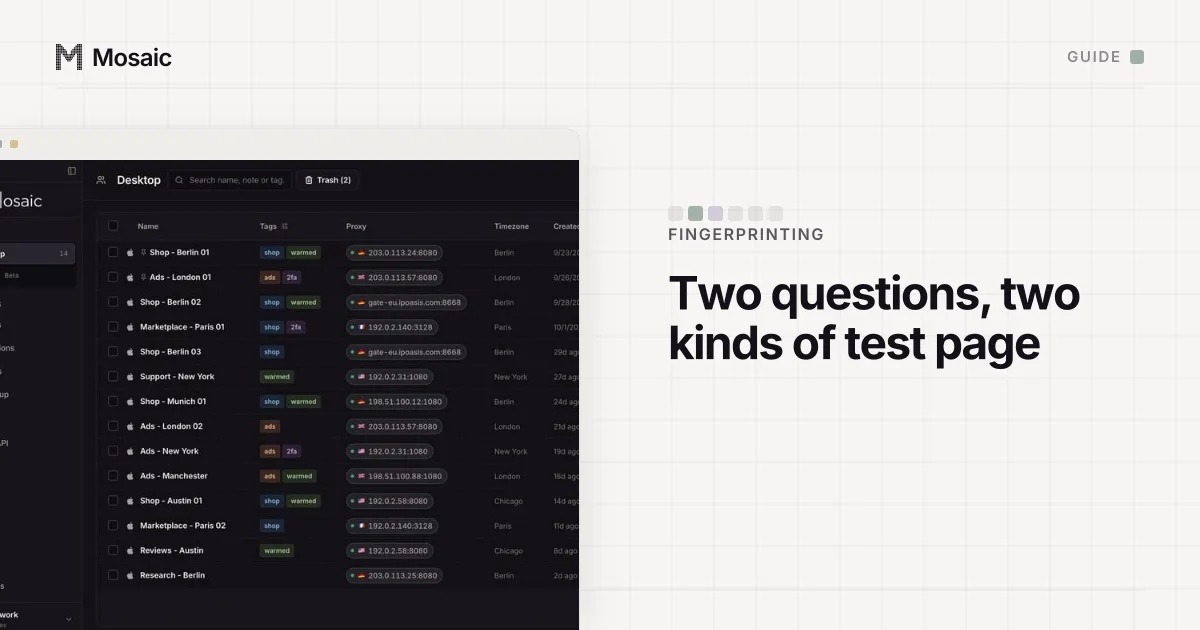
To check your browser fingerprint, visit a page that reads it back to you. There are two kinds, and they answer different questions. Uniqueness tests such as EFF's Cover Your Tracks and AmIUnique tell you how rare your browser is. Consistency scanners such as Pixelscan tell you whether the values could belong to one real computer. Most people need both, and most guides only mention the first.
Step 1: see what a site can read
Open Cover Your Tracks, the EFF's test, and press Test Your Browser. It says it "provides you with an overview of your browser's most unique and identifying characteristics", and it shows each value beside how common it is.
AmIUnique does the same against its own collection of fingerprints. Its page is plain about the cost: pressing See My Fingerprint means "we will collect your browser fingerprint and we will put a cookie on your browser for a period of 4 months".
What to look at in either one:
- the User-Agent, and whether it names the browser and system you really run
- screen size and pixel ratio
- the WebGL vendor and renderer, which name your graphics chip
- canvas and audio hashes
- the font list
- timezone and language
If one of those is rare and you did not choose it (an unusual font you installed once, a high-contrast setting), that is the value that makes you easy to pick out. What a browser fingerprint is explains how a site turns each into an identifier.
Step 2: check that it agrees with itself
CreepJS reads the same surfaces several ways, including from inside workers, and reports where the answers disagree. A browser whose page says one core count and whose worker says another has been modified, and CreepJS will say so.
Pixelscan asks the question an anti-fraud system asks: could this be a real machine? It shows one headline, consistent or inconsistent, and cards for masking, automation and proxy use. Each card and our dated runs against it are in what Pixelscan checks.
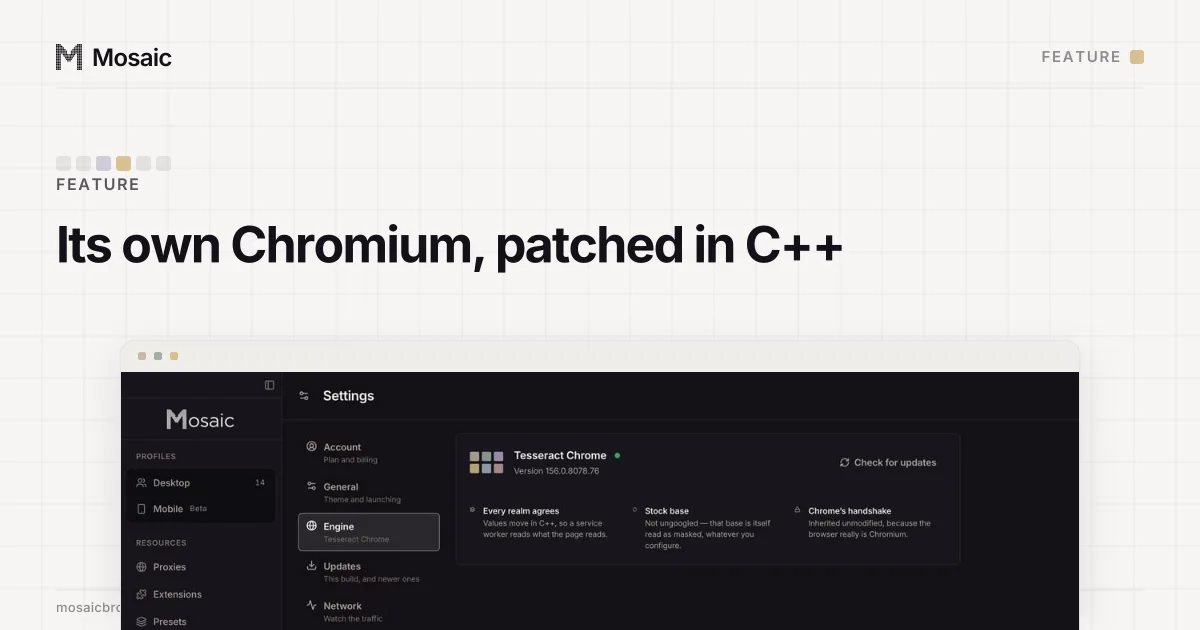
The fingerprint is changed inside the engine, not painted on topIn Mosaic: Its own Chromium. Tesseract Chrome: values changed in C++, not JavaScript. Free holds 3 profiles. Pro is $49 a month for any number.
Mosaic is a desktop app
Email yourself the link and open it on your computer.
How it works: Its own Chromium
Step 3: check what leaks around a proxy
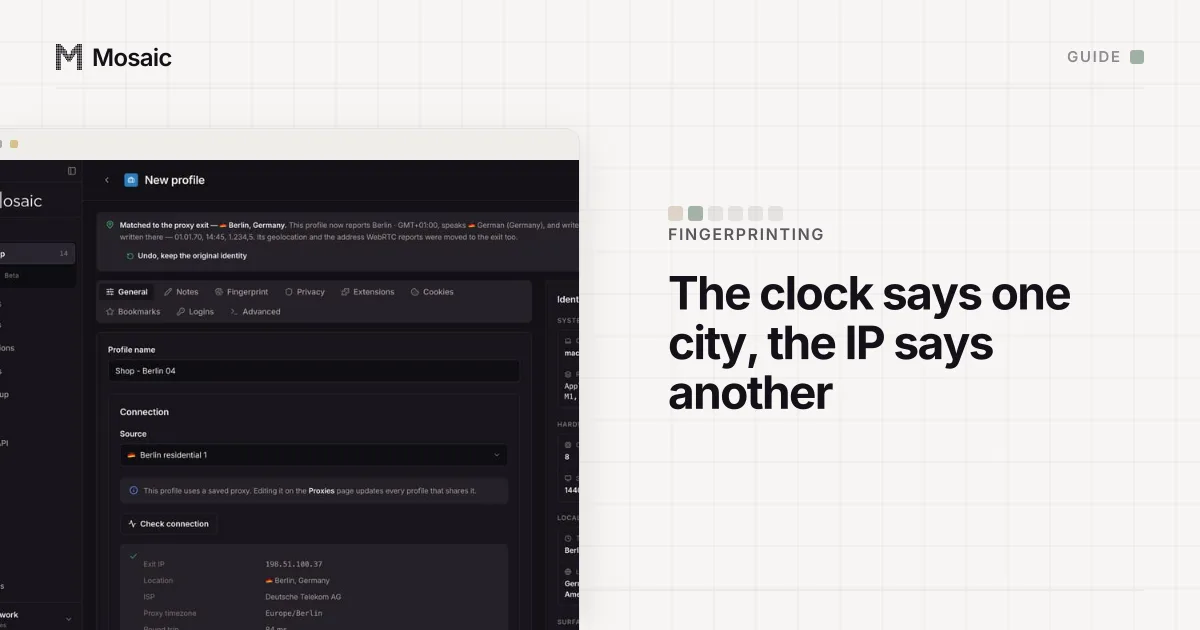
If you browse through a proxy or VPN, run BrowserLeaks' WebRTC test through it. It lists the public address WebRTC can find. If that is your home address and not the proxy's, every other setting is wasted. Then compare the browser's timezone with the location of your exit, because that is the first comparison a consistency scanner makes (why the two disagree).
Step 4: run it twice, beside a control
This is the step that separates a reading from a guess.
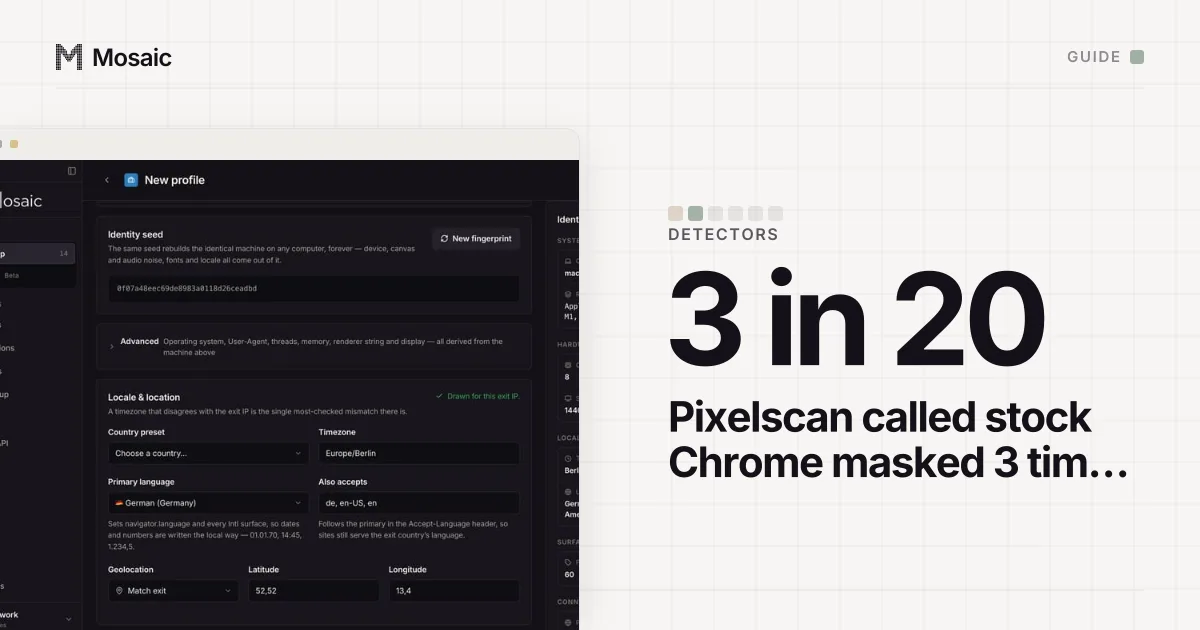
A live scanner is a website having a good or bad day. In September 2026, on one Mac with no proxy, we ran an untouched Google Chrome through Pixelscan 20 times with a fresh profile each run. It was called consistent 16 times, masked 3 times, and returned no verdict once. A red result that a stock browser of the same version also gets is not a finding about you.
So:
- Run every test at least twice. A result that does not repeat is noise.
- Run an untouched browser of the same version, from the same address, at the same time.
- If your browser fails and the control passes, change one thing and run both again.
The question that finds the worst faults is not "does it pass" but "does it pass twice". Our engine once had a geolocation spoof that answered the first request with the right coordinates and timed out on every request after it. Every manual test is a first request.
How to read a browser fingerprint check
| Result | What it means | What to do |
|---|---|---|
| Unique on Cover Your Tracks or AmIUnique | A site can recognise this browser without cookies | Normal for most computers; matters for privacy, not for whether a fingerprint looks real |
| Inconsistent on Pixelscan, control consistent | Something you changed contradicts the rest | Undo changes one at a time (our list of causes) |
| Inconsistent on both | The site, or your address | Re-run later; try another exit |
| WebRTC shows your home address | The proxy is being routed around | Fix that first |
| Timezone in a different place from the exit | The clock and the network disagree | Match the zone to the exit |
Checking a Mosaic profile
In Mosaic you can run these pages from inside a profile's own browser, through its own proxy, without copying anything across.
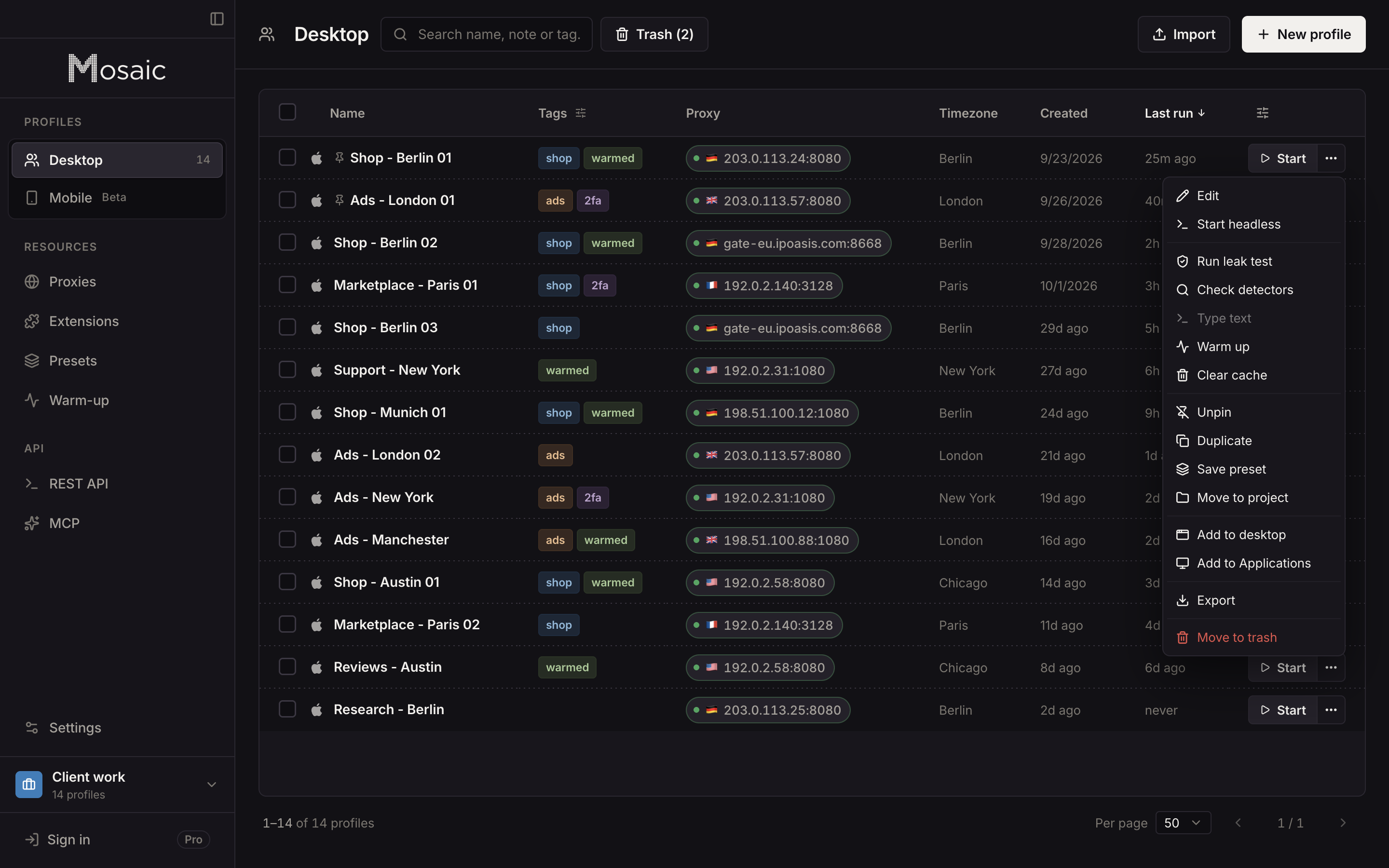
- In the profile list, open the row's menu and choose Check detectors.
- Pick a group: Consistency, Live gates, Leaks, Uniqueness or Automation. As of 2 November 2026 the catalogue holds 49 public detectors, including CreepJS, AmIUnique, Cover Your Tracks, Pixelscan, IPHey and the BrowserLeaks pages.
- Pick a page. Mosaic starts the profile if it is not running and opens the page in a new tab of that profile's browser.
- For the network half, choose Run leak test from the same menu. It checks from inside the profile's page that the exit address matches the proxy, that WebRTC shows no other public address, that the timezone, language and geolocation the page reads are the ones the profile claims, and that the timezone agrees with the exit's location.
Nothing in the Check detectors dialog is scored by Mosaic; it shows what a pass looks like on that page, and you read the verdict yourself. The values those pages read are set inside Tesseract Chrome, in C++, so the page, its workers and its iframes all report one machine.
Sources
- EFF: Cover Your Tracks, read November 2, 2026
- AmIUnique, read November 2, 2026
- CreepJS, read November 2, 2026
- BrowserLeaks: WebRTC Leak Test, read November 2, 2026
- Pixelscan: fingerprint check, read November 2, 2026