A 2FA code is made from a setup key the site gave you once, plus the current time. So to manage 2FA codes for multiple accounts, you are really managing many setup keys: where each one lives, what it is labelled, and where its second copy is. Get those three right and the six digits take care of themselves.
Why one authenticator app stops working at twenty accounts
Codes from an authenticator app are TOTP codes. RFC 6238, the standard behind them, recommends a 30-second time step and lets a site accept at most one step of delay (RFC 6238, read 2 November 2026). That window is fine for one account. It gets tight when the code is on a phone, the login is in a browser, and the list on the phone has four entries called "Instagram".
The usual failures are small and they repeat:
- An entry labelled only with the site name, so you try three codes before one works.
- A code read with three seconds left, which has expired by the time it is typed.
- The phone as the only copy. Lose it, reset it or hand it in at the end of a job, and every account on it needs recovery.
- A colleague asking for "the code for the Acme account" on a chat app, and you reading it out from your own phone.
None of these is a security flaw in TOTP. They are filing problems, and filing has a fix.
Label every secret with the account and its owner
When you add a secret, the label is the only thing that tells two entries for one site apart. Use the account and who it belongs to: "Acme, Instagram, acme.studio" beats "Instagram". If your app lets you rename an entry, fix the old ones too.
If you work for clients, group the entries per client. Some authenticator apps have folders. A password manager has vaults or collections. A per-account browser has the profile itself.
Your profiles, cookies and proxies stay on your computerIn Mosaic: Local first. Profiles, cookies and proxies stay on your computer. Free holds 3 profiles. Pro is $49 a month for any number.
Mosaic is a desktop app
Email yourself the link and open it on your computer.
Keep a second copy of every secret
The setup key is the thing to back up, not the codes. Three ways to do it, from most to least common:
- A synced authenticator. Google Authenticator syncs codes across devices when you sign in to a Google Account in the app, and can export them to a new phone as QR codes when you don't (Google Account Help, read 2 November 2026).
- A password manager that stores the key with the login. 1Password keeps a one-time password on the login item, next to the password it belongs to (1Password Support). Bitwarden stores an authenticator key on any account, but generating the codes needs Premium or a paid organisation (Bitwarden Help), both read 2 November 2026.
- The key, written down at setup. Most sites show the key as text under the QR code, behind a link such as "can't scan it?". Copy it into wherever you keep the account's password before you finish enrolling.
Save the recovery codes the site offers at the same time, in the same place as the password. They are what gets you back in when every copy of the secret is gone.
Put the code where the login is
The faster habit is to keep each account's code in the same place you sign in. A password manager does this in your browser. For people who keep each account in its own browser profile, the code belongs to that profile, so opening the client's browser also opens the client's codes and nobody else's. That second setup is why we built a vault into every Mosaic profile, and it is the one we describe below. The reasons to separate the browsers themselves, cookies, fingerprint and exit, are in how to manage multiple accounts without getting linked.
Managing 2FA codes for multiple accounts in Mosaic
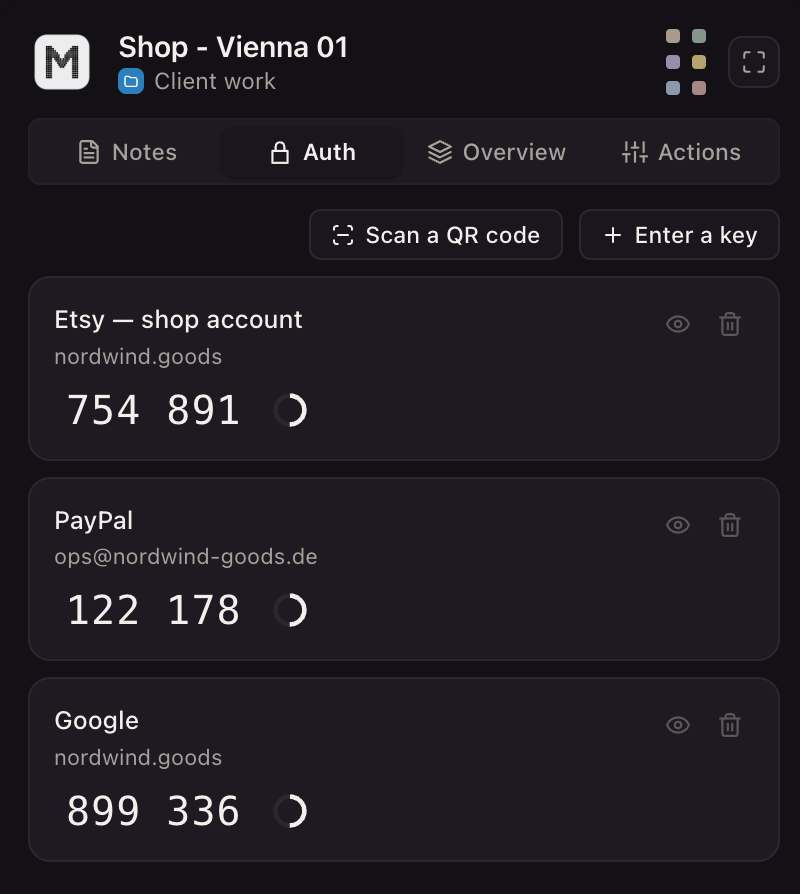
Each Mosaic profile has its own login vault. A saved login can carry its two-factor secret, and the profile then shows the current code with the seconds it has left.
- Open the profile in Mosaic and go to its Logins tab.
- Press Add login. Fill in Label (what the login is for, in your own words), Site, Email or username and Password.
- Press Two-factor secret or notes and paste the site's setup key into Two-factor secret. Spaces and lowercase are fine, and so is the whole
otpauth://link from behind the QR code. - Put the site's recovery codes in Notes, and save. A key that could never produce a code is refused at this point, with the reason.
- Start the profile. The companion extension inside its browser shows that profile's codes on its Auth tab, each with a countdown. Click into the code field on the site and choose Type a two-factor code from that login's menu on the Logins tab, which types the digits with real keystrokes.
We check the key when it is saved because of a bug we shipped. The check used to run only when a code was asked for, so on 29 September 2026 the companion accepted not a key!! as a secret, answered "Saved to this profile.", and the row would have shown dashes for ever. Now a mistyped or half-pasted key is refused at the door all three of Mosaic's surfaces write through.
The codes are six digits on a 30-second period, the defaults most sites use. Mosaic reads only the secret out of an otpauth:// link, so a site that issues eight-digit codes or a different period will not match; keep that one in an app that reads those settings.
Keep the backup outside Mosaic too
Mosaic keeps the vault on your computer, encrypted on disk with the rest of the library, and has no cloud copy of it. Our server never receives a profile's logins (what it does receive). That is the point, and it also means the vault is one copy on one machine. Keep each secret and its recovery codes in your password manager as well, so a lost laptop costs you an afternoon, not twenty account recoveries.
If you run accounts for clients, the client should own them and hold their own recovery. Managing social media accounts for multiple clients covers who holds what, from the first week to offboarding.
Accounts you are allowed to hold
A separate vault per account keeps your codes apart. It does not change what a platform allows: hold codes for accounts that are yours, or that a client has asked you to run, and use a platform's own team roles where it has them. The vault and its codes are on every plan; pricing has the rest.
Sources
- RFC 6238: TOTP, Time-Based One-Time Password Algorithm, read November 2, 2026
- Google Account Help: Get verification codes with Google Authenticator, read November 2, 2026
- Bitwarden Help: Integrated authenticator, read November 2, 2026
- 1Password Support: Use 1Password as an authenticator for sites with two-factor authentication, read November 2, 2026