Google built signing in to multiple Gmail accounts at once into Gmail itself. On a computer you add a second account from the menu under your profile picture, and from then on both stay signed in until you sign out. That covers most people. The two cases it handles badly are links that open in the wrong account, and accounts that belong to different people.
Having several accounts is ordinary as far as Google is concerned: it documents the steps to sign in to them together. Its Gmail Program Policies draw the line at using multiple accounts "to engage in a behavior that was previously prohibited" (Gmail Program Policies, read 2 November 2026). Mosaic keeps accounts you are entitled to run apart; it does not change what a platform allows.
How to sign in to multiple Gmail accounts at once on a computer
These are Google's steps from Sign in to multiple accounts at once (read 2 November 2026):
- Open Gmail and sign in to your first account.
- At the top right, select your profile picture or initial.
- Choose Add account.
- Sign in to the second account. Repeat for a third.
To switch, open the same menu and pick an account. Each one opens in its own tab with /u/0/, /u/1/ and so on in the address, so you can keep two tabs open, one inbox in each, and both stay live.
Which account is the default
The account you signed in with first is usually your default. Google says that when it "can't tell which account you're using", for example when you open a new window, it may fall back to the default account and apply its settings, such as Web & App Activity and Ads Personalization. That is why a link from a calendar invite or a Docs share sometimes lands in the wrong inbox. If one account is the one you use most, sign out of everything and sign in to that one first.
Signing out
Signing out is not per account in the same way. The menu offers Sign out or Sign out of all accounts (Sign out of or remove your account from Gmail, read 2 November 2026). To drop one account from the list for good, go to myaccount.google.com, open the same menu, choose Sign out, then Remove an account.
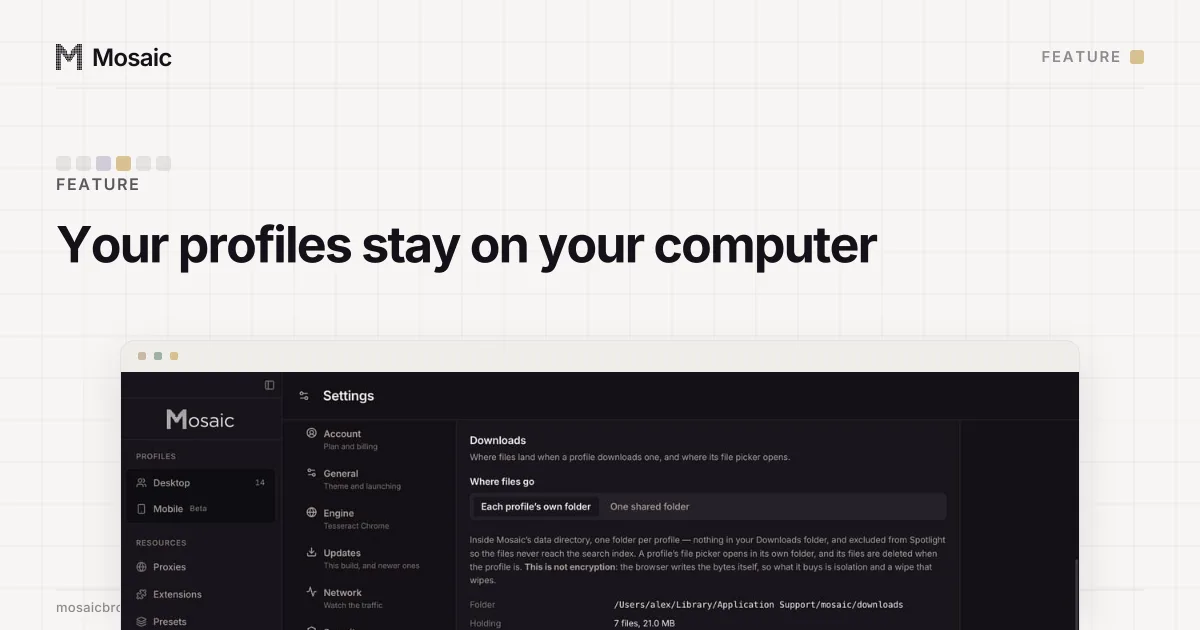
Your profiles, cookies and proxies stay on your computerIn Mosaic: Local first. Profiles, cookies and proxies stay on your computer. Free holds 3 profiles. Pro is $49 a month for any number.
Mosaic is a desktop app
Email yourself the link and open it on your computer.
In the Gmail app
On Android, Google's steps are: open the Gmail app, tap your profile picture in the search bar, then Add another account › Google (Add another email account in the Gmail app, read 2 November 2026). The same screen adds Outlook, iCloud Mail or Yahoo.
Once two accounts are in the app, Menu › All inboxes shows them in one list. Notifications come from every account. In the app there is no sign-out button; you remove an account from the device under Manage accounts on this device.
A private window as a second session
A private or incognito window keeps its own cookies, so you can sign in to a second Gmail account in it without touching the first. Google's devices page lists signing in "on an incognito or private browser window" as one of the things that creates a separate session in your account history (See devices with account access, read 2 November 2026). The catch is that everything is forgotten when the window closes, so you sign in, and pass two-step verification, every time.
When the accounts should not share a browser
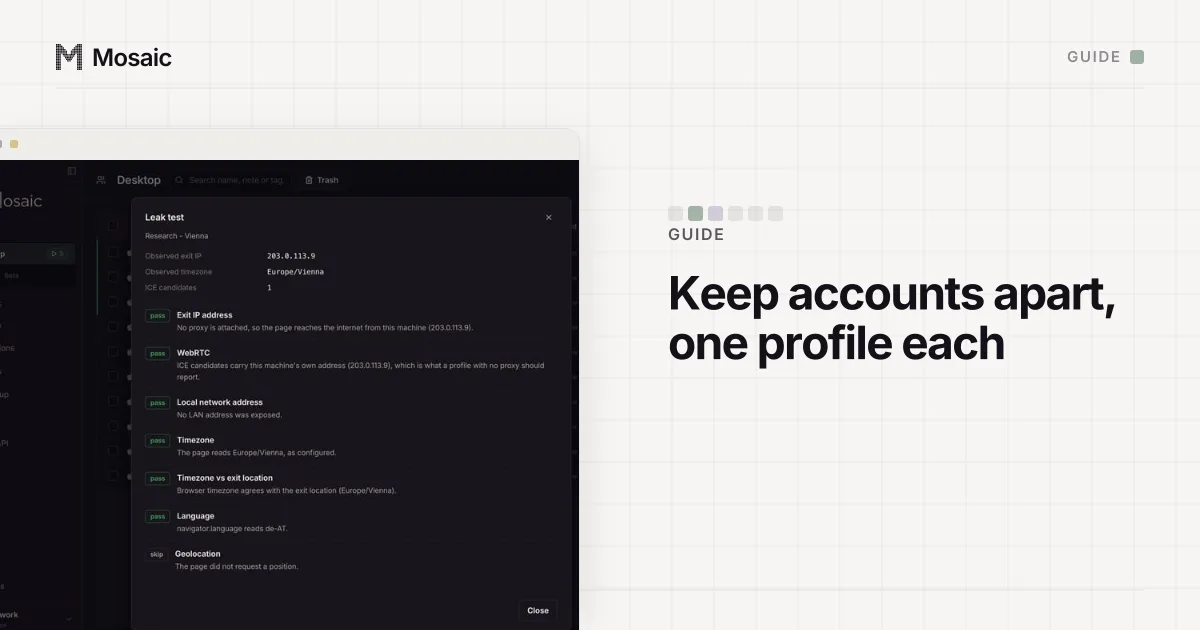
Every method above keeps all your accounts in one browser on one computer. For your personal and work Gmail, that is the whole point. It is different when the accounts belong to separate clients, or to a team where each account has its own owner. A page signed in to one account reads the same machine as a page signed in to the next: the same screen, graphics card, fonts and timezone, and the same internet address. The values a page can read are listed in browser fingerprint.
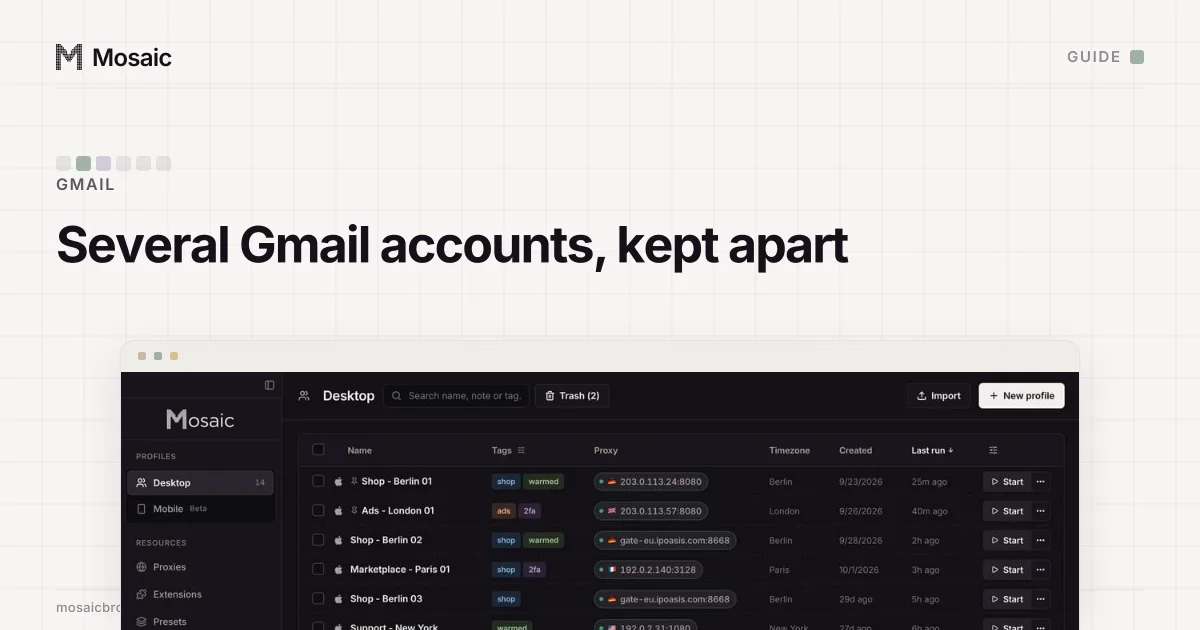
In Mosaic each Gmail account gets its own profile, and each profile is its own browser with its own cookies, fingerprint and proxy exit. Signing in to two accounts at once then means two windows, side by side:
- Click New profile and name it after the account, for example "Client A - Gmail".
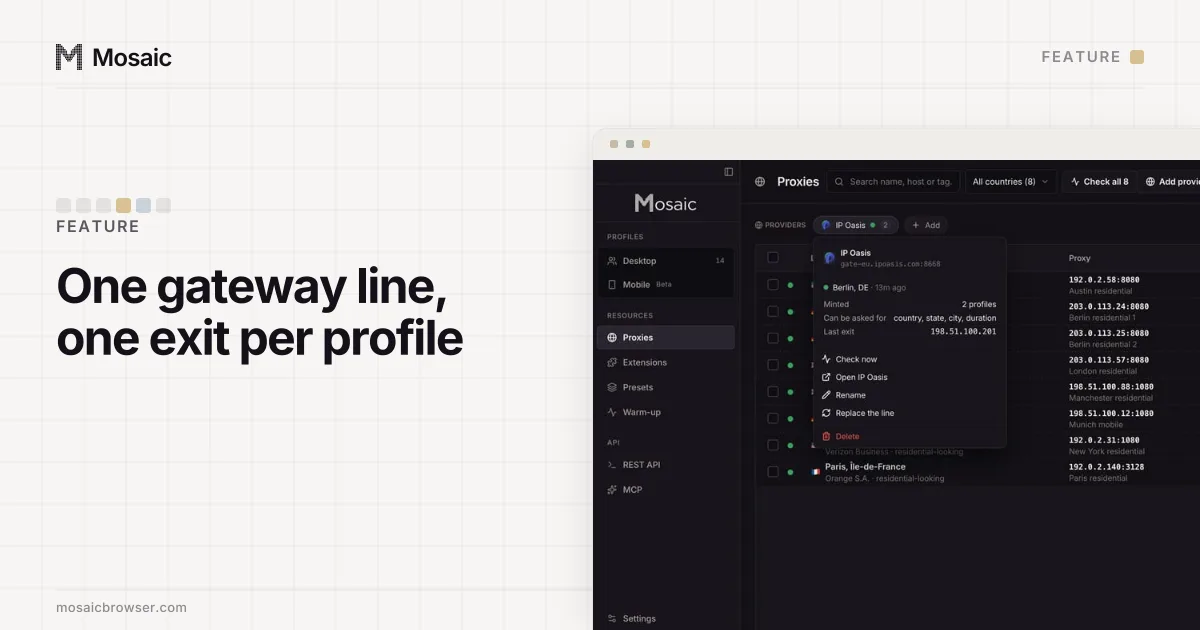
- On the General tab, choose a proxy, or paste one, if this account should browse from a set place. Mosaic checks it before every launch and refuses to open the profile behind a proxy that has not answered.
- Make a second profile the same way for the next account.
- Start both and sign in to one account in each window.
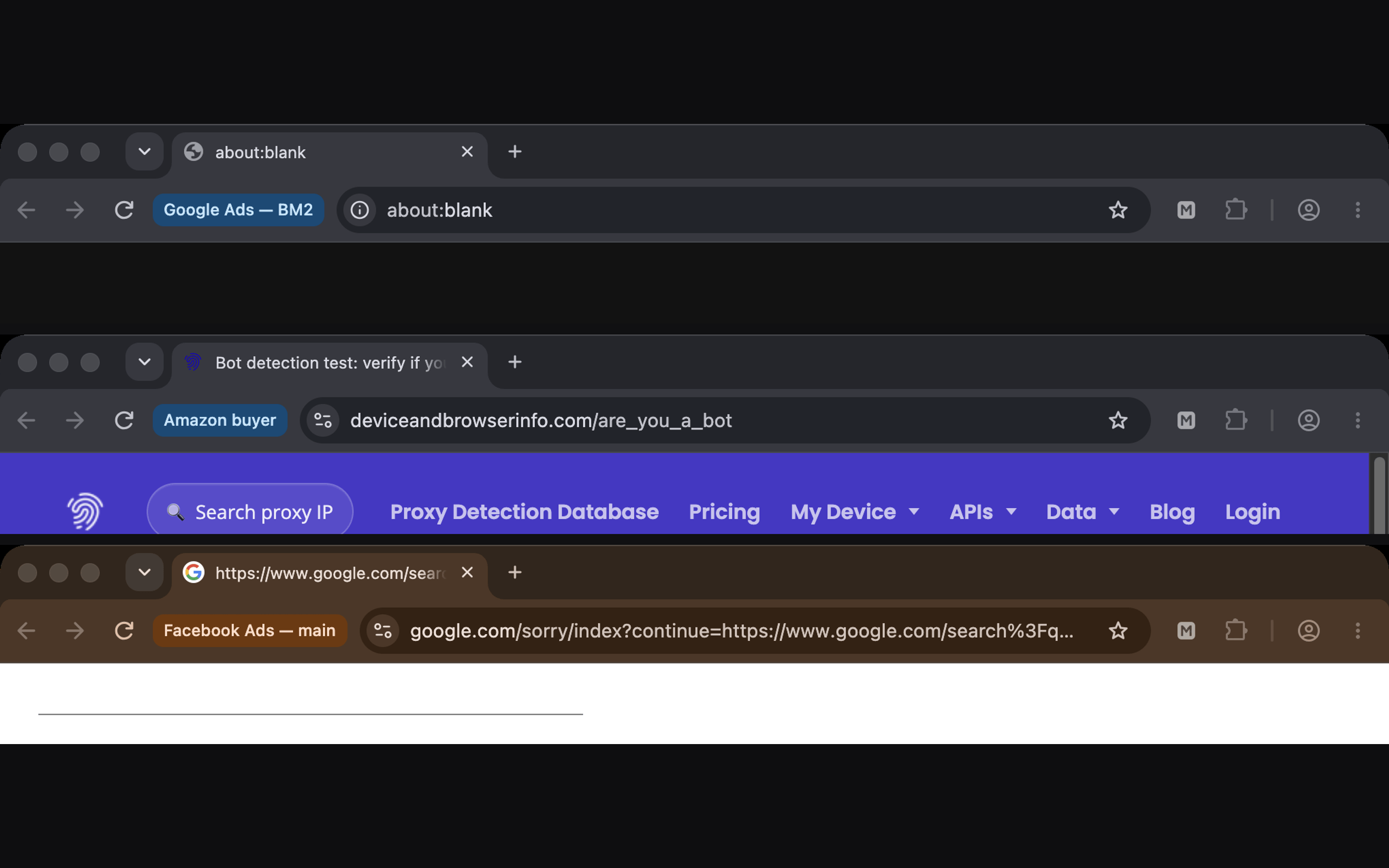
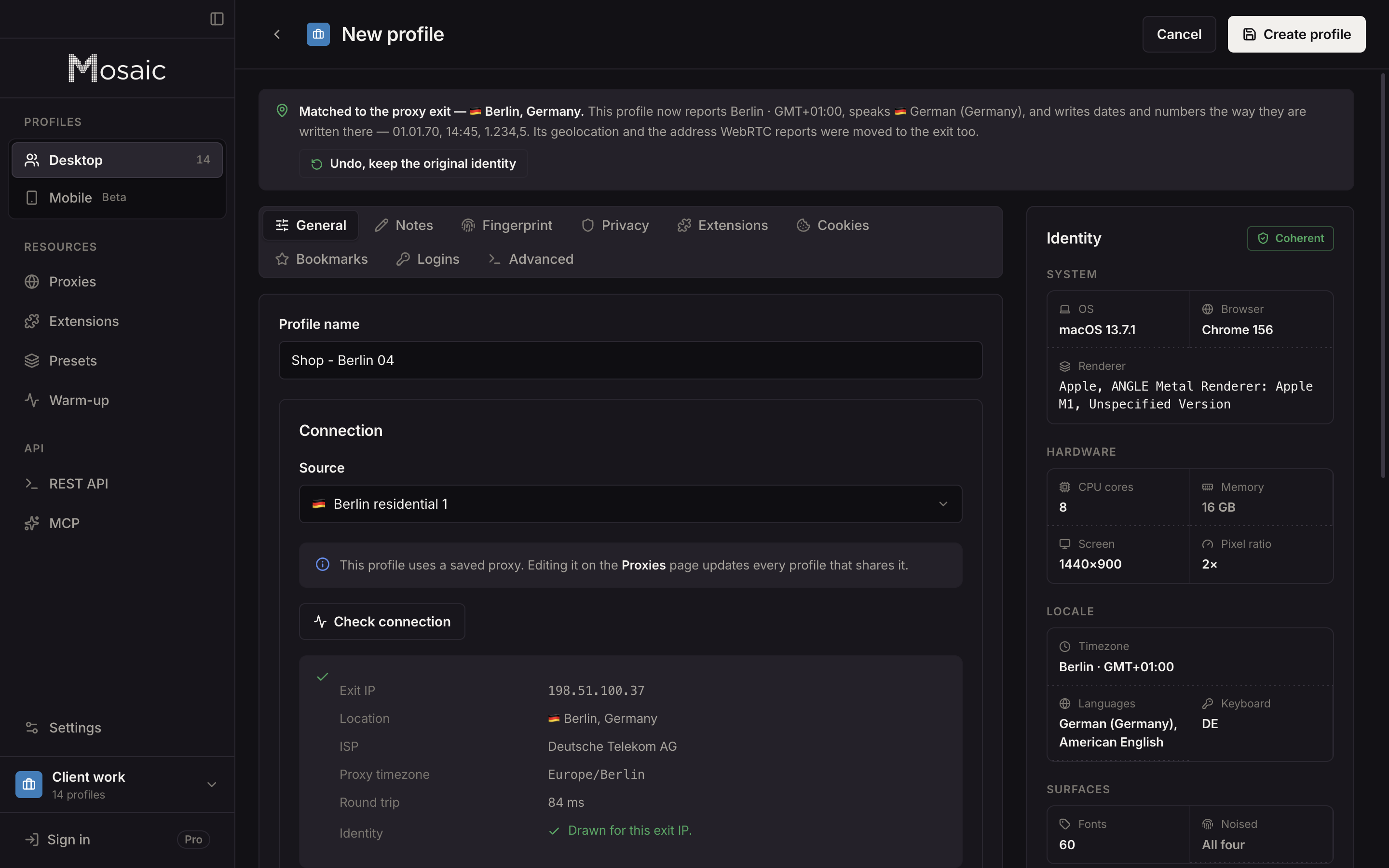
The cookies for each account stay in its profile, so closing a window and starting it again tomorrow usually finds the account still signed in, the way a browser you closed overnight would. Profiles, cookies and proxies stay on your computer; how that works, and what our server does know, is on local first. The four ways to keep many Gmail accounts in order, with mail fetching and delegation, are compared in how to manage multiple Gmail accounts.
Sources
- Google Account Help: Sign in to multiple accounts at once, read November 2, 2026
- Gmail Help: Add another email account in the Gmail app, read November 2, 2026
- Gmail Help: Sign out of or remove your account from Gmail, read November 2, 2026
- Google Account Help: See devices with account access, read November 2, 2026
- Gmail Help: Gmail Program Policies, read November 2, 2026