Managing multiple Shopify stores is mostly a question of which email each store sits on. Stores you own on one address are one Shopify login, and the store switcher moves between them. Grouping them into an organization adds shared staff and one bill. Stores you reach on a different address, such as a client's store or a second company's, need a browser of their own, because Shopify keeps one desktop browser on one account at a time.
The rule itself is short. Shopify's terms say "A Store Owner may have multiple Shopify Stores", and each store has one owner (Shopify Terms of Service, read 2 November 2026). Mosaic keeps accounts you are entitled to run apart; it does not change what a platform allows. Costs, themes and the other conditions are covered in can you have multiple stores on Shopify.
Stores on one email: use the store switcher
Shopify's own tool is free and already in your admin. The switcher "contains the Shopify stores where you have an account with the same email address", recent ones first (Switching between stores).
- Log in to the Shopify admin of any of your stores.
- Click the store name. On the refreshed admin design the switcher sits in the sidebar rather than the top bar.
- Pick a recent store, or click View all and search by name.
If a store is missing, Shopify's first suggestion is to check that your account in that store uses the same email as the others. Frozen, paused and closed stores are left out until they are reactivated. On a phone, add the stores to the Shopify app's list once (tap the store name, then Add store or Edit stores) and the app switches the same way.
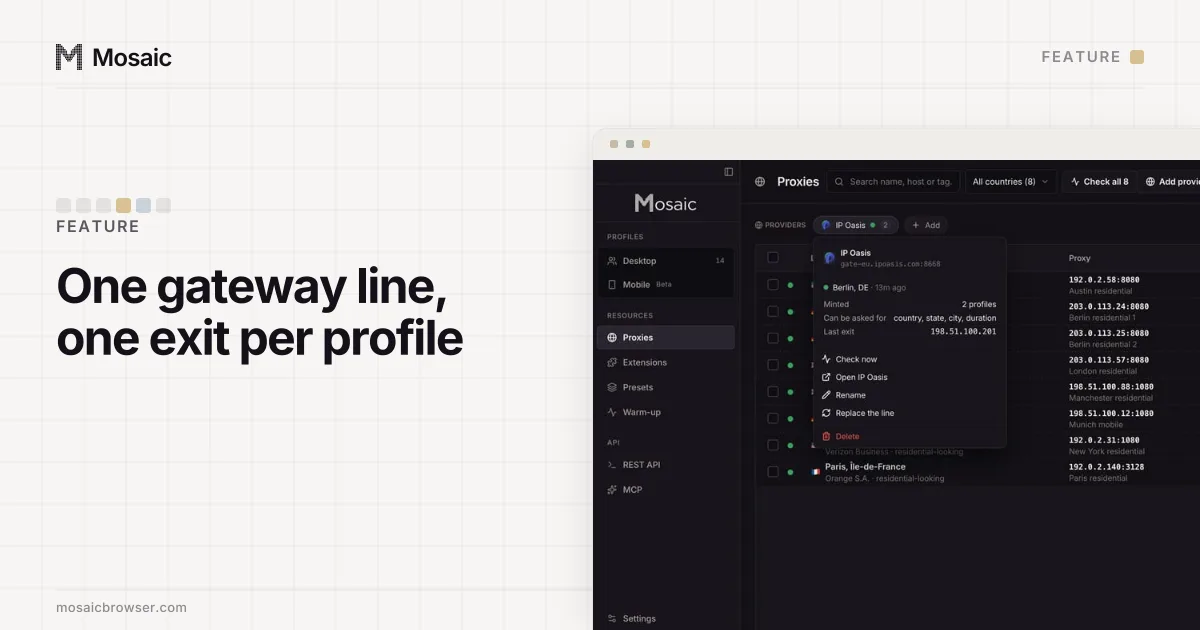
Paste one gateway line. Every profile mints its own exitIn Mosaic: Provider minting. One gateway line, a separate exit for every profile. Free holds 3 profiles. Pro is $49 a month for any number.
Mosaic is a desktop app
Email yourself the link and open it on your computer.
How it works: Provider minting
Stores that need shared staff: group them into an organization
When the same people work across your stores, an organization saves inviting them store by store. On plans below Shopify Plus, the owner groups stores from Settings > General, in the Transfer store section, by choosing Move store into a new or existing organization (Group a store to an organization).
Shopify lets you do this only when you own every store in the group and they all bill in one currency. That currency is fixed once the organization exists, and stores billed in Indian rupees can't be grouped at all. After grouping, payment methods move up to the organization and billing permissions are removed from everyone except the organization owner, so check your staff's roles straight after. Plus merchants manage several stores as expansion stores instead.
Staff numbers are set by each store's plan: Starter and Basic allow no staff accounts, Grow 5, Advanced 15 and Plus unlimited. Collaborator accounts for Shopify Partners do not count toward those numbers (Maximum number of users for each pricing plan).
Stores on different emails: one browser profile each
Here Shopify's tools stop. Its login help is explicit: "You can't log in to multiple accounts on a desktop device, you can only switch between different accounts" (Log in and out of your Shopify account). Switching means signing out of one account and into the other, with a two-step code each time if you have it on.
A browser profile per account fixes that for free. Each Chrome or Edge profile has its own cookies, so each stays signed in to its own Shopify account and you move between windows instead of logins. Name each profile after the store, and keep that store's order exports in a folder of its own, because a shared downloads folder is where three stores' CSVs get mixed up. The general version of this set-up, with what a browser profile does and does not separate, is in how to manage multiple accounts on one computer.
How to manage multiple Shopify stores in Mosaic
A Mosaic profile goes further than a Chrome profile in three ways that matter for stores: each one keeps its own saved logins with their two-step codes, its own downloads folder, and its own fingerprint drawn from real hardware. We built it for sellers and agencies who outgrew a handful of Chrome profiles.
- Click New profile and name it after the store and the login it uses ("Shopify - Northwind, staff").
- On the General tab, leave the proxy empty. You are running your own stores from your own connection, and Shopify's login troubleshooting asks you to check that a VPN is not blocking Shopify (Troubleshooting login). A saved proxy provider is there for when you want to look at a storefront from another country.
- Start the profile and log in to that store's Shopify account. If the account owns several stores on one email, use the switcher inside this profile.
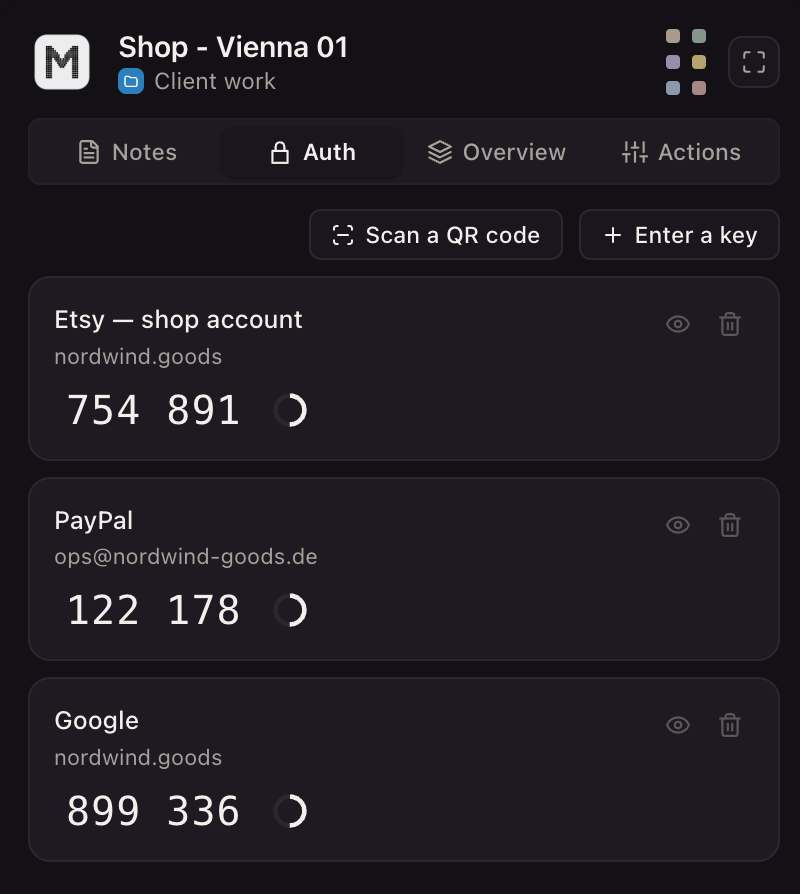
- In the Logins tab, choose Add login, then Two-factor secret or notes, and paste the secret behind the QR code Shopify shows when you turn on an authenticator app (the base32 key or the whole otpauth:// link). The companion inside the profile then shows the current code.
- Put the store's myshopify.com address, its plan and who has staff access in the Notes tab.
- Tag every store profile "shopify", so the table filters to your stores in one click.
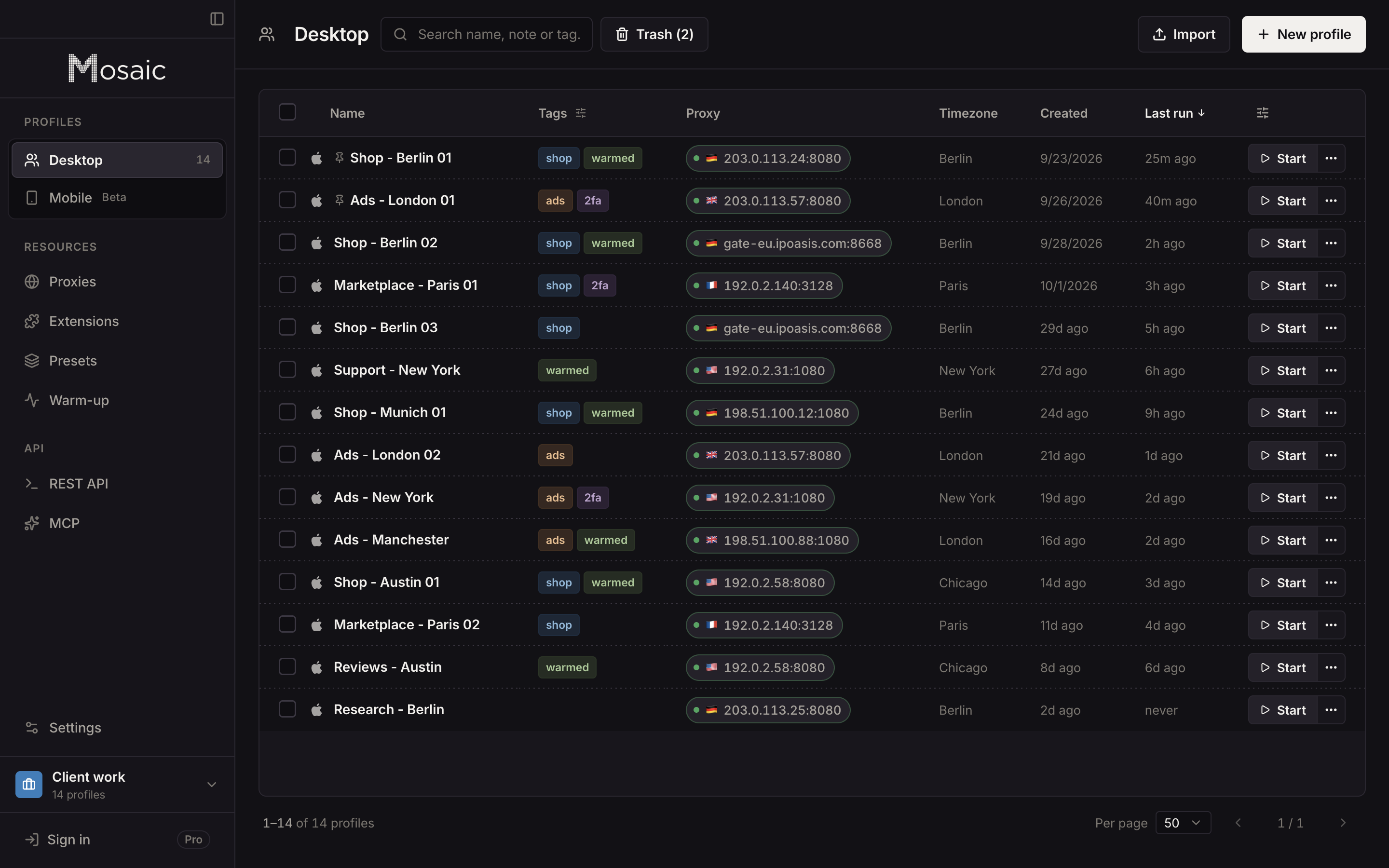
Each profile's downloads land in its own folder, kept out of Spotlight and deleted with the profile, so a payout report from one store never sits beside another's. Profiles, cookies and proxies stay on your computer; Mosaic has no cloud copy of them.
Free is 3 profiles and 10 profile creations, which covers a few stores. Pro is $49 a month with no per-profile pricing, and the details are on pricing.
Sources
- Shopify Terms of Service, read November 2, 2026
- Shopify Help Center: Switching between stores, read November 2, 2026
- Shopify Help Center: Log in and out of your Shopify account, read November 2, 2026
- Shopify Help Center: Group a store to an organization, read November 2, 2026
- Shopify Help Center: Maximum number of users for each pricing plan, read November 2, 2026
- Shopify Help Center: Troubleshooting login, read November 2, 2026