Most social media client onboarding checklists cover the contract, the questionnaire and the kickoff call. This is the part after that: the first hour in the browser. Ask for role-based access instead of passwords, then give the client a project, a proxy in their own market, and a place for any two-factor codes you do end up holding. Every one of those is a rule you will lean on the day the work ends.
Ask for access, not passwords
The big platforms have a way for a client to let you in without telling you anything secret. On Meta, the client's Business portfolio adds your business as a partner and shares the assets you need: the Page, the Instagram account, the ad account. On Google Ads, your manager account sends a link request to the client's account and the client accepts it. In both cases the client stays the owner, you work from your own login, and ending the work is the client removing a partner, with no password to change.
For those two you keep no client login in a browser at all. You sign in as yourself and the client's Page and ad account appear under your own name, because they were shared with your business. Meta allows one personal Facebook account per person, and partner access is how an agency works inside that rule: your one account reaches each client through the client's own Business portfolio. Mosaic keeps accounts you are entitled to run apart; it does not change what a platform allows.
Spend the first fifteen minutes writing two lists. The first is the invitations: Meta partner access accepted, the Google Ads link approved. The second is what is left over, the tools that hand out no partner role, like the client's WordPress admin or a newsletter account on a single-user plan. Next to each one, write the name of the person at the client who holds admin. That second list is the reason a browser comes into it.
A profile list built for the keyboard and for three hundred rowsIn Mosaic: The profile manager. Pins, a command palette, columns you choose, fast search. Free holds 3 profiles. Pro is $49 a month for any number.
Mosaic is a desktop app
Email yourself the link and open it on your computer.
How it works: The profile manager
Give the client a project
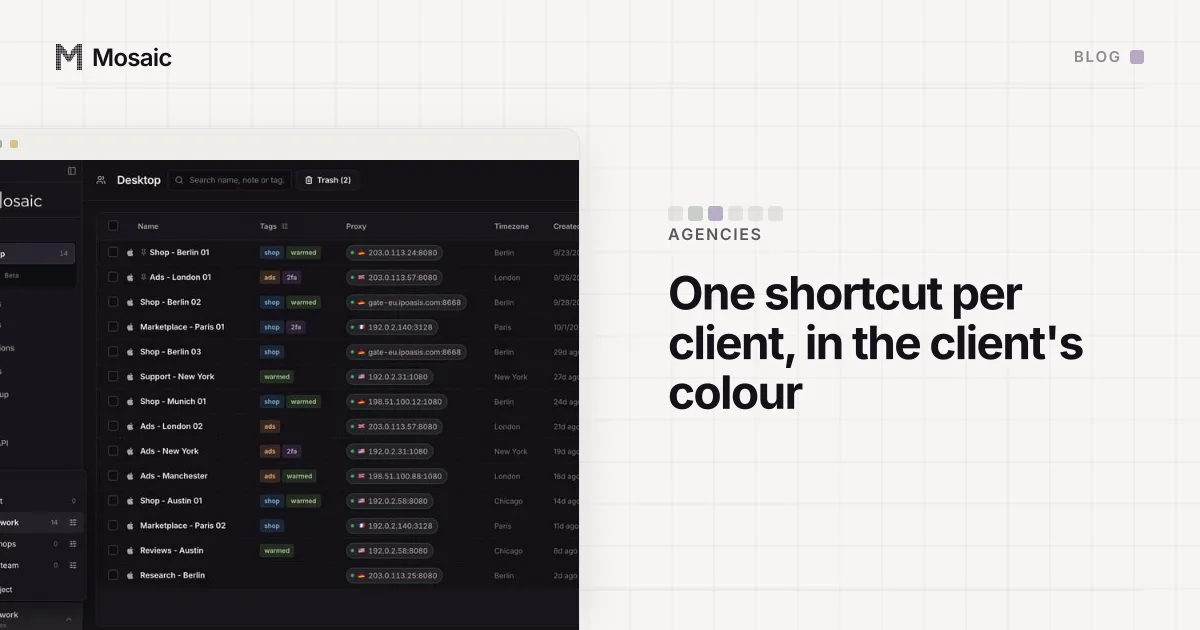
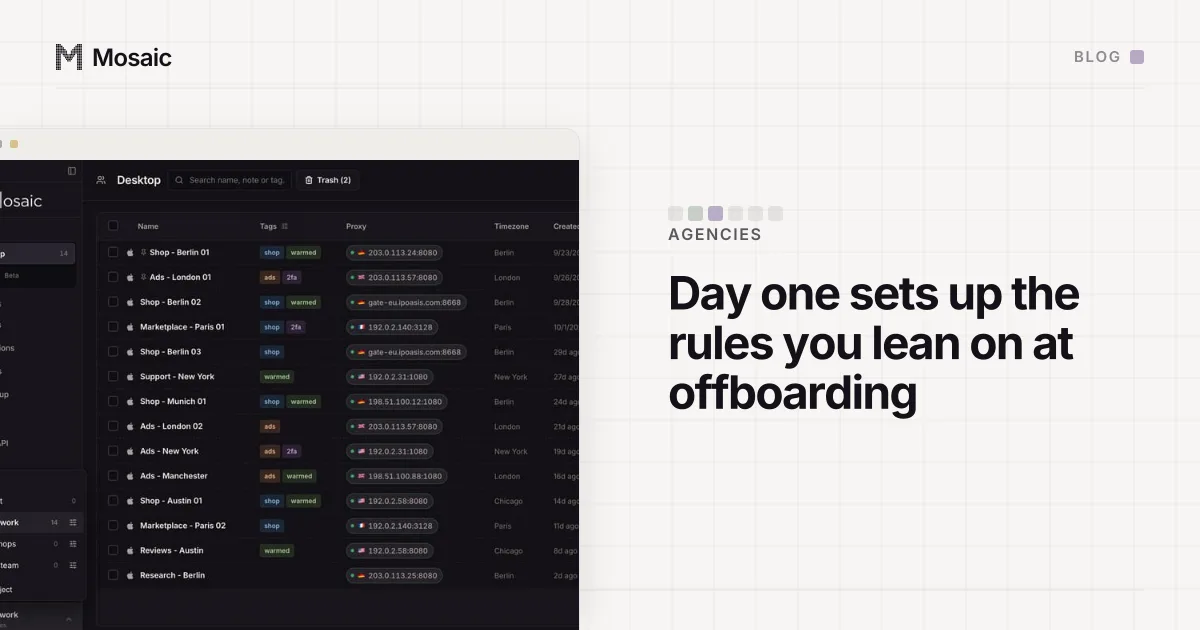
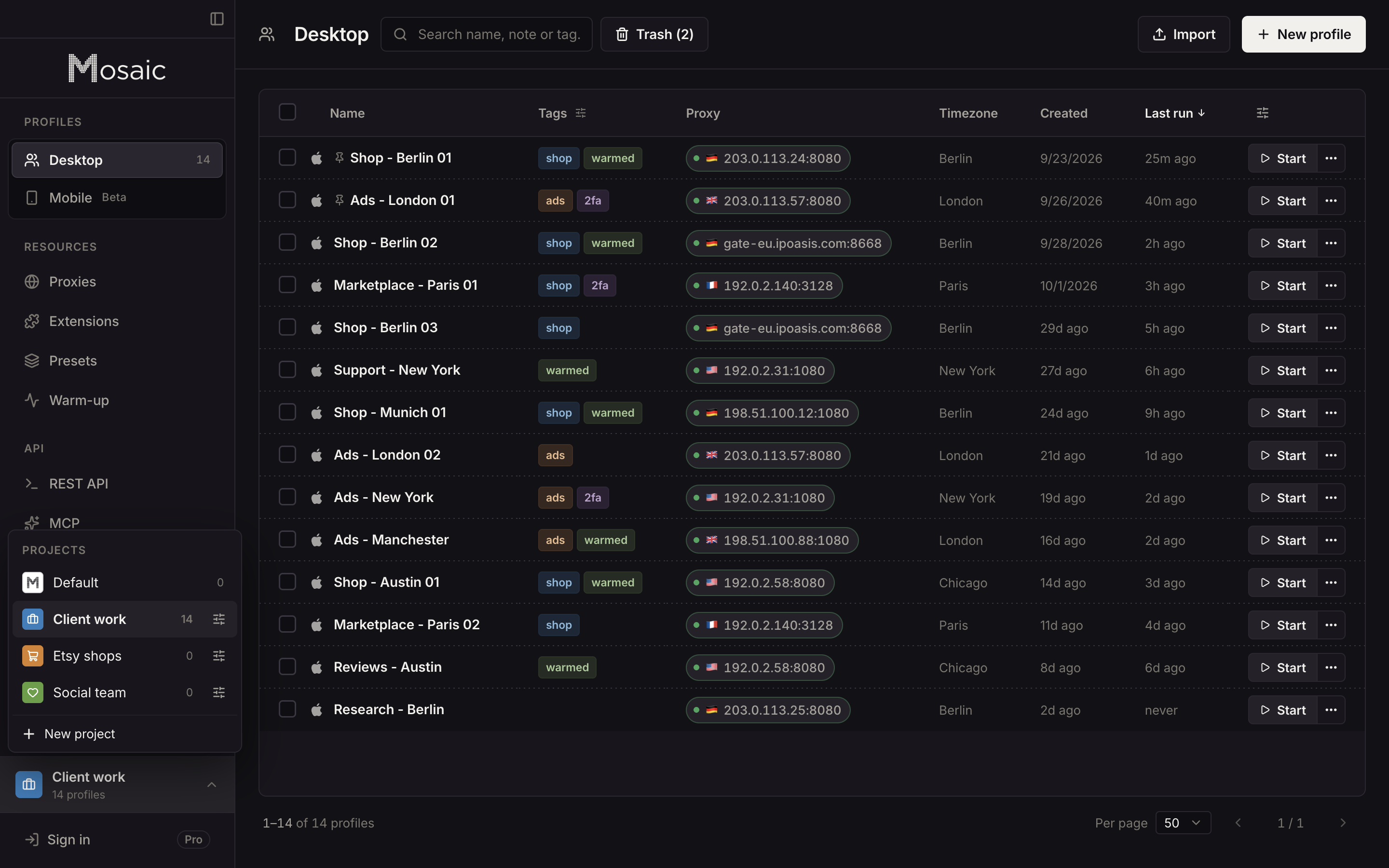
For everything on that second list, make a project named after the client in Mosaic. A project is a folder of profiles with its own colour and icon, so the client's work is one coloured block in the sidebar rather than five rows mixed in with everyone else's.
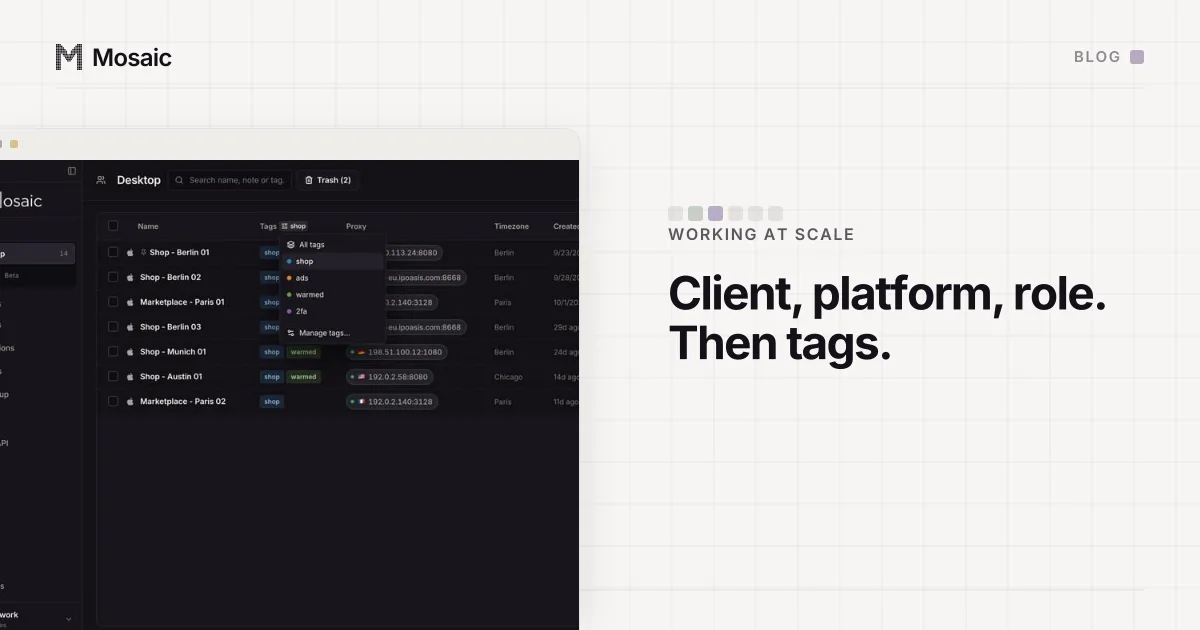
Then one profile per login the client hands you. Each profile is a separate browser with its own cookies, its own fingerprint and its own proxy, so the client's store admin and the client's newsletter tool do not share a cookie jar with each other, or with the next client. Tag the profiles by platform. Put a line in each profile's note saying what it is for and who at the client owns the login. You will want that note in a year, and the person reading it may not be you.
Put the proxy in their market
Sites compare a new sign-in with where that account usually signs in from. A newsletter tool that has seen a Lyon client log in from Lyon for three years, and then sees Leeds, is likely to send the client a "was this you?" email on your first morning. So give that client's profiles a proxy in France, or in Lyon if your seller can target a city. If the seller is saved in Mosaic as a provider, each profile mints its own session id, and two of the client's logins never share an exit by accident.
The profile's timezone, language and geolocation follow that proxy's measured exit, so the browser's clock agrees with the address a site sees. You can check any browser's agreement with our timezone and IP checker. A profile does not open behind a proxy that has not answered, and if one fails, the launch says which and why.
Keep their two-factor codes with their profile
Some logins you will hold anyway, and most of them will have two-factor sign-in. The usual outcome is the codes ending up in one account manager's phone, which works until that person is on holiday or leaves.
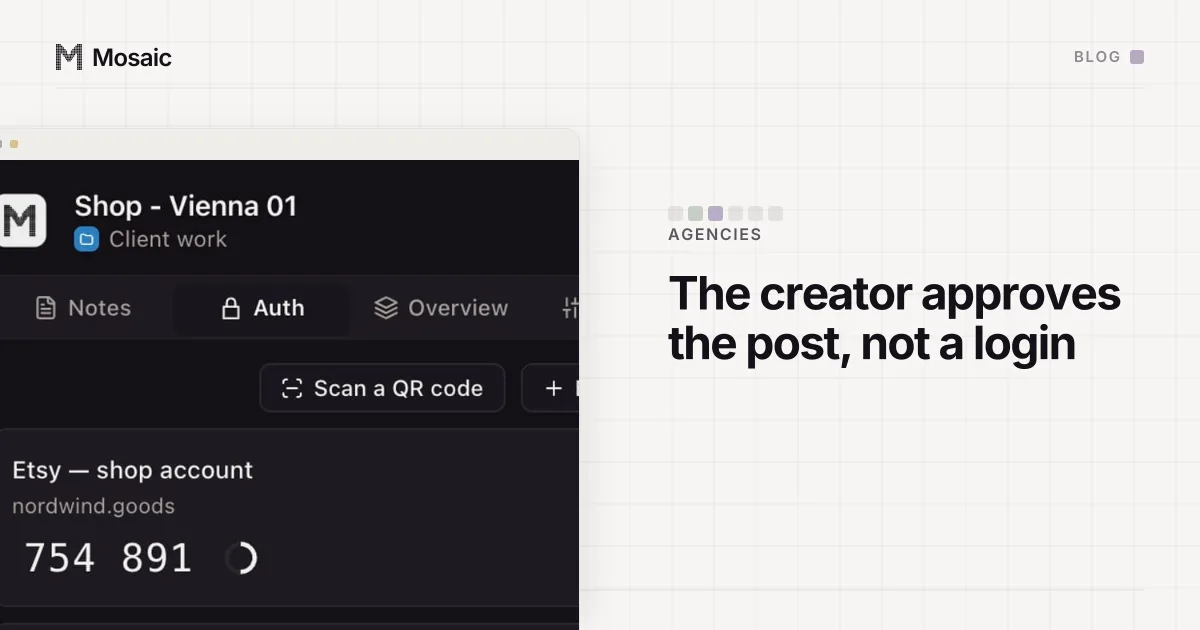
Each Mosaic profile has its own credentials vault, which holds logins and TOTP setup keys. When the client turns on an authenticator for a shared login, put the setup key into that client's profile. A setup key that cannot make a code is refused when you save it, not on the morning you need it. The companion, the extension inside each profile's browser, shows the codes for that profile only and fills them with real keystrokes, so one client's codes never show up in another client's browser.
Why day one is about the last day
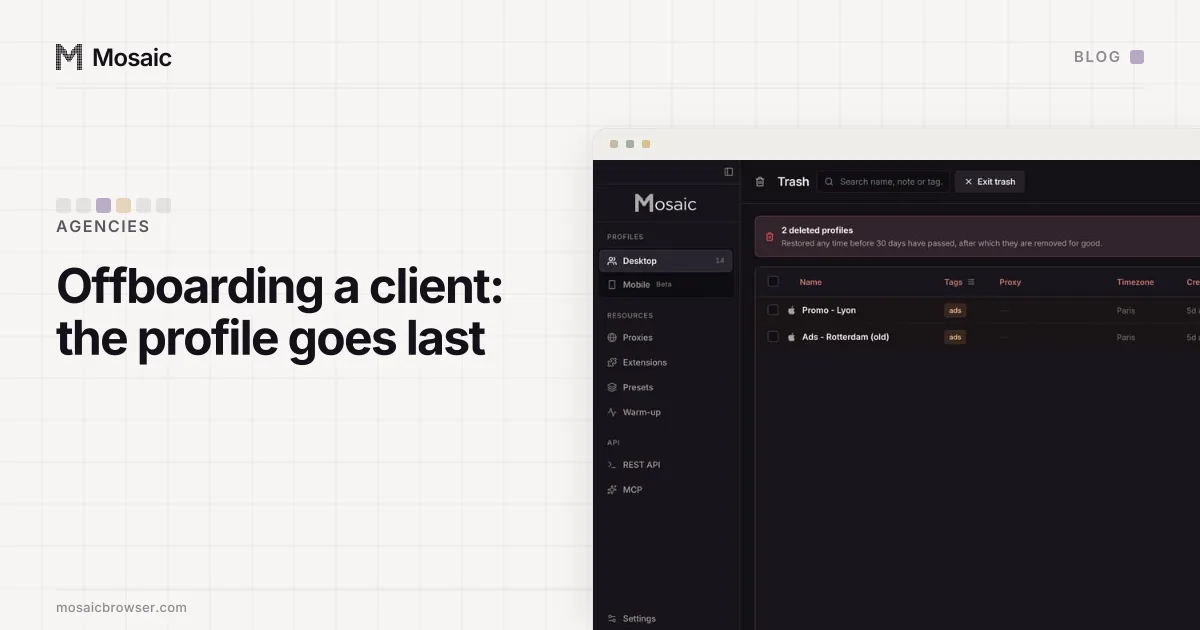
Every choice above is an offboarding decision made early. When the work ends, the client removes your business as a partner on the platforms that had one. For everything else there is one project to look at. Hand back what is theirs: a profile's cookie jar can be exported, and the logins in the vault are written down, not in somebody's head. Then move the project's profiles to the trash. Trashing a profile closes its browser first. The trash keeps it for 30 days by default, in case you were too quick.
Here is the hour as a checklist, in order:
- Meta partner access and the Google Ads manager link, invited and accepted.
- The leftover logins, each with the client's admin named beside it.
- A Mosaic project named after the client, one profile per leftover login, tagged by platform.
- Each profile on a proxy, or a provider pick, in the client's country.
- Every shared login's TOTP setup key saved in that login's profile.
- One line per login saying how it goes back: a cookie export, a password the client resets, or a partner they remove.
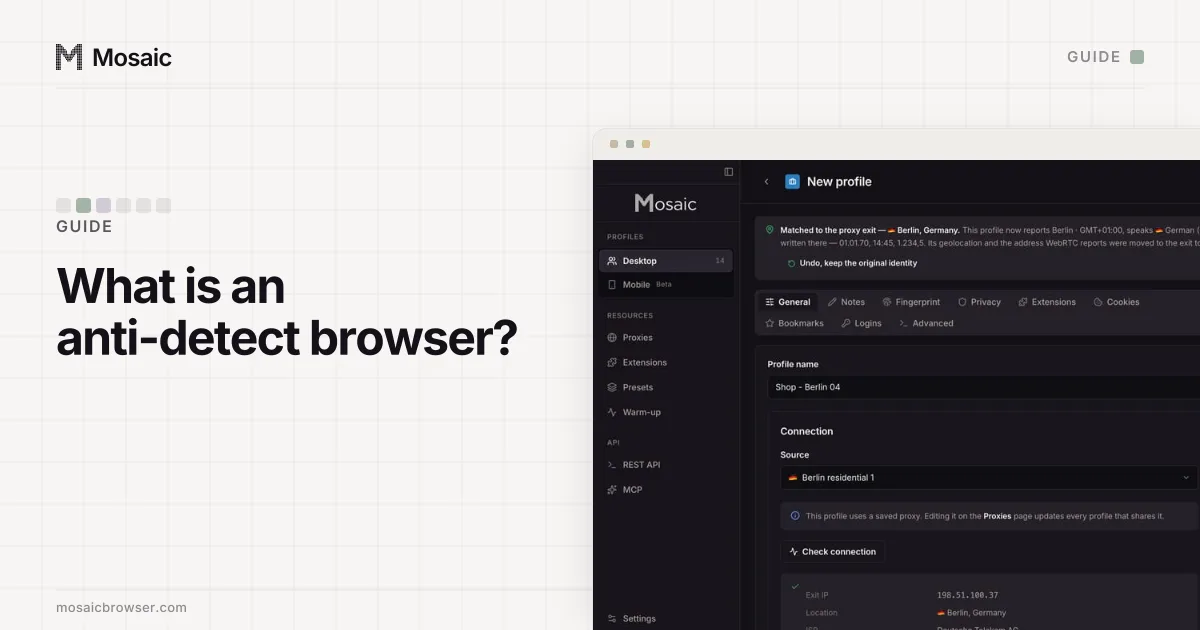
How Mosaic organises and runs profiles at this scale is on the profile manager page. If an anti-detect browser is new to you, what an anti-detect browser is explains what it changes and what it cannot. The plans are on pricing.