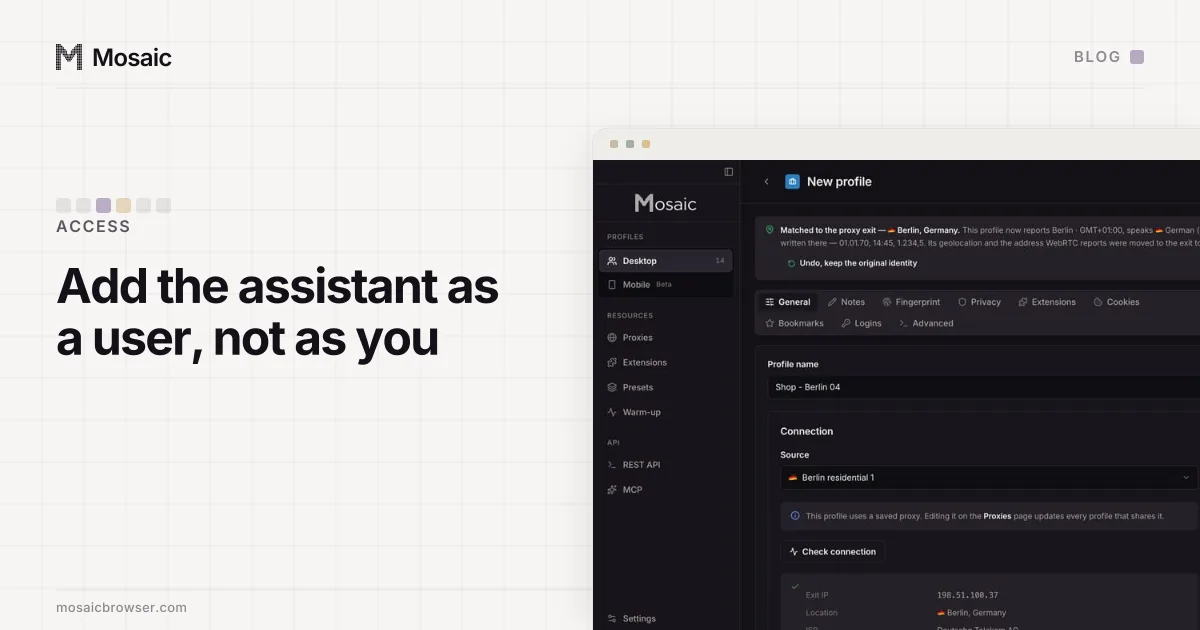
To give a virtual assistant access to your accounts, add them as a user inside each platform, under their own login, with only the permissions the job needs. Seller Central, Meta's business tools, Google Ads, Gmail and Shopify all have a way to do it, and none of them needs your password. Sharing the password is the fallback for the tools that have no such door, and it should stay a fallback.
We make a browser, so it is worth saying early where it does not help. Mosaic has no seats, no shared profiles and no way to move a profile to another person's computer. For most of this job the right tool belongs to the platform.
Why a virtual assistant needs access of their own, not your password
A shared password has three costs, and they arrive at different times.
On the first day it is two-factor. The code goes to your phone or your authenticator, so either you read it out every time the assistant signs in, or somebody turns two-factor off to make the arrangement work. The second choice is common, and it lasts.
During the work it is the record. Every action looks like yours. When an order is refunded or a campaign budget changes, the platform's log names you, and neither of you can show who did it.
At the end it is revoking. A password the assistant knows stays a working password until you change it, and changing it means updating it everywhere else you use it. With a user invitation, you remove one person from one list and their access ends there, while yours carries on untouched.
There is a quieter reason too. A login used from two people's computers in two countries is one account showing two devices and two locations. When a platform notices and asks for a security check, it asks you.
Amazon Seller Central
Seller Central has User Permissions under its settings menu. You invite the assistant by email, they accept with an Amazon login of their own, and you choose per area what they can see and what they can change: inventory, orders, advertising, reports and so on. Some rights, such as changing the account's payment details, stay with the account's primary user.
The useful habit is to start narrow. An assistant who answers buyer messages needs view and edit on messages and view on orders, not edit on pricing. Seller Central lets you widen a permission later in a minute, and nobody ever audits the one that was too wide.
Make 500 profiles in one go, then work on all of them at onceIn Mosaic: Bulk actions. 500 profiles per batch; start, edit and type into many. Free holds 3 profiles. Pro is $49 a month for any number.
Mosaic is a desktop app
Email yourself the link and open it on your computer.
Meta: Facebook Pages, Instagram and ad accounts
Meta's door is the business portfolio. In its settings, under People, you add the assistant by email and then assign them to the specific assets they work on: this Page, that ad account, this Instagram account, each with full or partial control. They work from their own Facebook login. If the assistant is part of an agency, the agency's portfolio can be added as a partner instead, and the agency decides which of its people see your assets.
The difference between being added as a person and as a partner, and who owns the Page in each case, is laid out in business portfolio and Business Manager.
Google: Ads, Gmail and the rest
Google splits this by product, which is why people miss it.
Google Ads has its own user list, under admin settings. You invite a Google account at an access level, from read-only up to admin, and remove it there later. An agency with a manager account can link to yours instead, and you can unlink it from your side at any time.
Gmail has delegation. In Gmail's settings, under accounts, you grant access to another Google account. The delegate opens your inbox from their own account and can read, send and archive; mail they send says it was sent by them on your behalf. They cannot change your password or your settings, and you end it from the same screen.
For Drive, Calendar and Analytics, sharing the specific file, calendar or property beats sharing the account. If you run a Google Workspace domain, the cleanest answer is a Workspace user of their own.
Shopify and tools with staff accounts
Shopify gives each person a staff account with permissions you tick: orders, products, customers, and so on. Many other tools a business runs on, from email platforms to help desks, have the same idea under the name team members or users. It is worth checking each tool's settings before assuming you have to share a login. The tools that genuinely have one login per account are usually small ones, and those are where a password manager's shared vault, with the two-factor secret stored alongside, does better than a shared password spreadsheet.
Where a browser like Mosaic fits
Mosaic gives every account its own browser: its own fingerprint, its own proxy exit and its own cookies, kept on the computer it runs on. That matters on the assistant's side of the arrangement, not yours.
An assistant working for five businesses signs in to five Seller Centrals, five Meta portfolios and a handful of inboxes. The logins are their own, so the platforms already know who they are; the risk is in the browser. In one browser every one of those sessions sits in one cookie jar, and the tab that was open on client A is one click from a post meant for client B, which is how posting on the wrong client account usually happens. With Mosaic the assistant keeps each client in a separate profile, with that client's logins and their two-factor codes in the profile's own credentials vault, so one client's codes never appear in another client's browser. Mosaic keeps accounts you are entitled to run apart; it does not change what a platform allows.
What it cannot do is hand your browser to them. A profile carries working sign-ins in its cookie jar, and exporting one to someone else is giving them your session, which is the shared password with extra steps. When the work ends, remove the assistant from each platform's user list, then retire their client profiles; client offboarding gives that order, and a quarterly access audit catches the user who was never removed.