Chrome's settings page has no proxy field. Settings › System › Open your computer's proxy settings sends you to macOS or Windows, and whatever you set there applies to every Chrome profile and every other app on the machine. So the honest answer to "how do I use a different proxy for each Chrome profile" is that Chrome itself does not offer it, and there are two ways around that.
Where Chrome gets its proxy
Chromium's network documentation lists the sources, in the order it consults them (proxy.md, read 2 November 2026):
- managed Chrome policy, which an employer or school sets
- command-line flags such as
--proxy-server - "(per-profile) Chrome extensions", through the
chrome.proxyAPI - "(per-network) System proxy settings"
Only the third is per profile. The second applies to one running Chrome process, which matters for method 2 below. The fourth is what you get with no changes, and it is the same for all profiles.
Method 1: a proxy extension in each profile
This keeps everything inside the Chrome you already use.
- Switch to the first profile from the profile icon at the top right.
- Install a proxy-switching extension from the Chrome Web Store. Pick one with recent updates and a privacy policy you have read, because it sees every address the profile visits.
- Add the proxy's scheme, host and port in the extension, and set it as the active one.
- Visit a what-is-my-IP page and check the address and location.
- Repeat in the next profile with its own proxy.
Extensions installed in one profile do not exist in another, so each profile keeps its own setting. If the proxy needs a username and password over HTTP or HTTPS, Chrome asks for them in a sign-in box, and some extensions fill it for you.
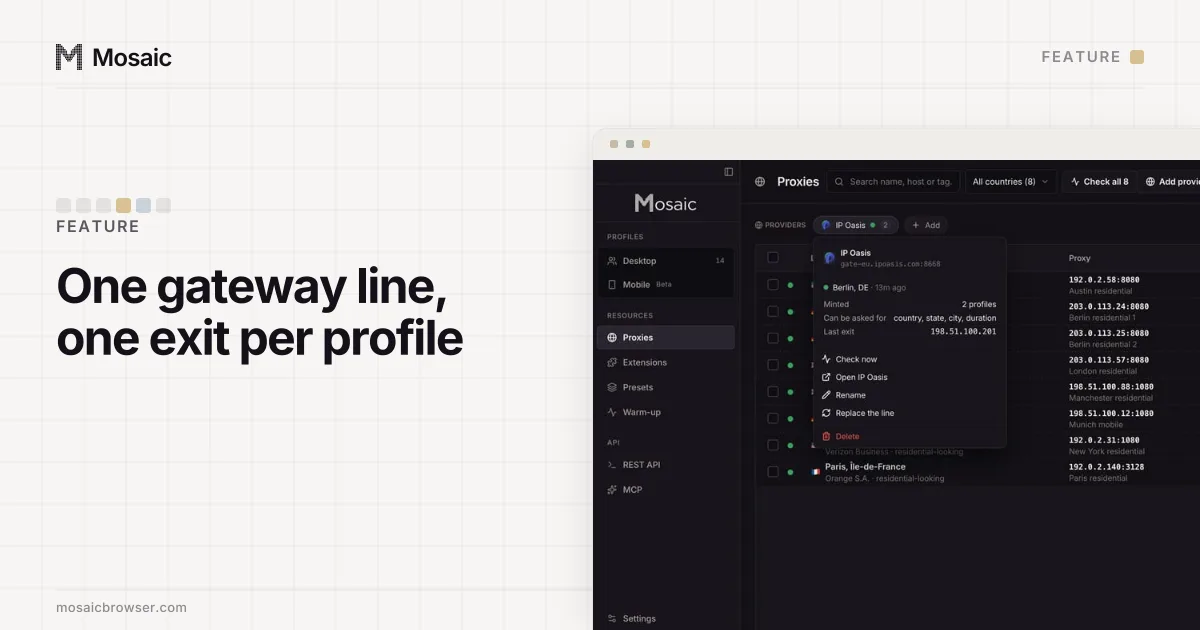
Paste one gateway line. Every profile mints its own exitIn Mosaic: Provider minting. One gateway line, a separate exit for every profile. Free holds 3 profiles. Pro is $49 a month for any number.
Mosaic is a desktop app
Email yourself the link and open it on your computer.
How it works: Provider minting
Method 2: a separate Chrome per proxy
The --proxy-server flag sets a proxy for one Chrome process. A Chrome that is already running ignores the flag when you open another window, so the trick is to start a separate copy of Chrome with its own user data directory, which Chromium's user data directory notes describe.
On a Mac, in Terminal:
open -na "Google Chrome" --args --user-data-dir="$HOME/chrome-client-a" --proxy-server="http://203.0.113.10:8080"
On Windows, as a shortcut target:
"C:\Program Files\Google\Chrome\Application\chrome.exe" --user-data-dir="C:\chrome-client-a" --proxy-server="http://203.0.113.10:8080"
Each folder is a completely separate Chrome, with its own profiles, cookies and extensions, started fresh the first time. Use one folder per proxy and one shortcut per folder. The proxy.md page shows the other forms the flag takes, such as socks5://host:1080 or a list with direct:// as a fallback. Leave the fallback out: if the proxy fails, you want the page to fail, not to load from your home connection.
Three limits neither method removes
SOCKS5 with a password does not work
Chromium's document is direct: "No authentication methods are supported for SOCKSv5 in Chrome". If your seller gives you socks5://user:pass@host:port, use its HTTP endpoint instead.
WebRTC can go around the proxy
A page can open a WebRTC connection over UDP, which an HTTP proxy does not carry, and learn your real address that way. Run a leak test in each profile; the fixes for Chrome are in how to fix a WebRTC leak in Chrome.
The rest of the browser still describes your computer
A profile with a Berlin proxy still reports your own timezone, your own language list, your own graphics card and your own screen. A site comparing the Berlin address with a Pacific-time clock sees a mismatch, which browser timezone does not match IP walks through. And two profiles with two proxies still read as one machine on two addresses, which is why a proxy alone does little for multiple accounts on the same IP address.
For a handful of your own profiles, method 1 is fine. Once each profile belongs to a different client and needs its own region, the shortcuts and extensions pile up, and nothing in Chrome keeps them consistent.
How Mosaic gives each profile its own proxy
In Mosaic the proxy is a field of the profile, so there is nothing to install per profile and nothing shared with the system.
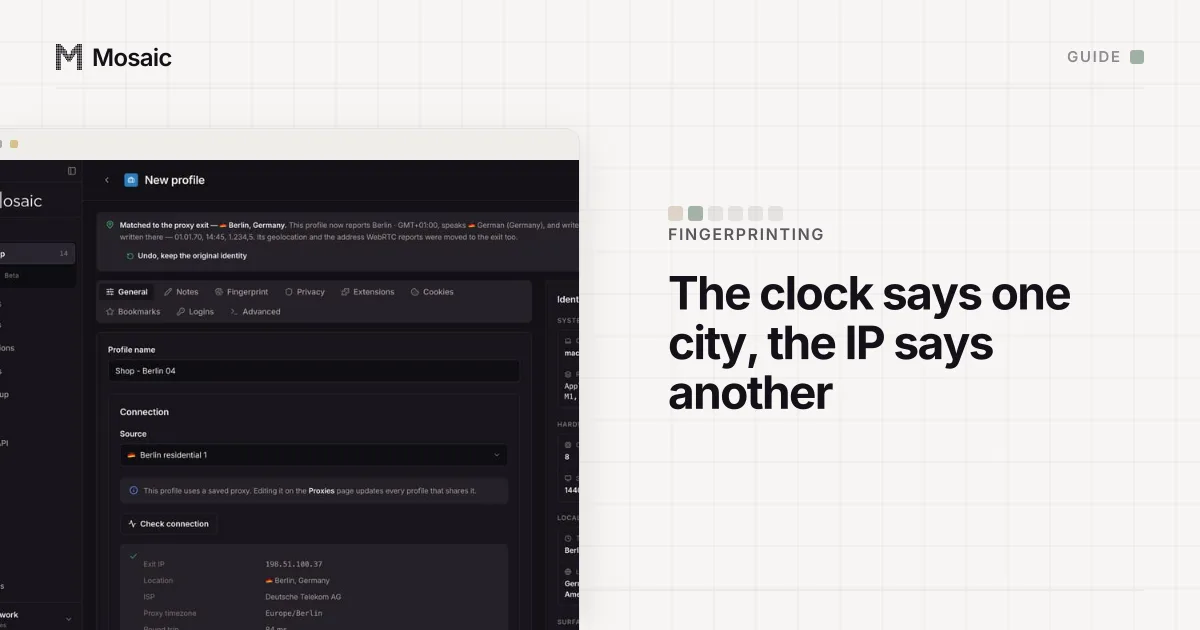
- Open New profile. On the General tab, under Connection › Source, choose Custom to paste a proxy for this profile only, pick one from Saved proxies, or pick a provider.
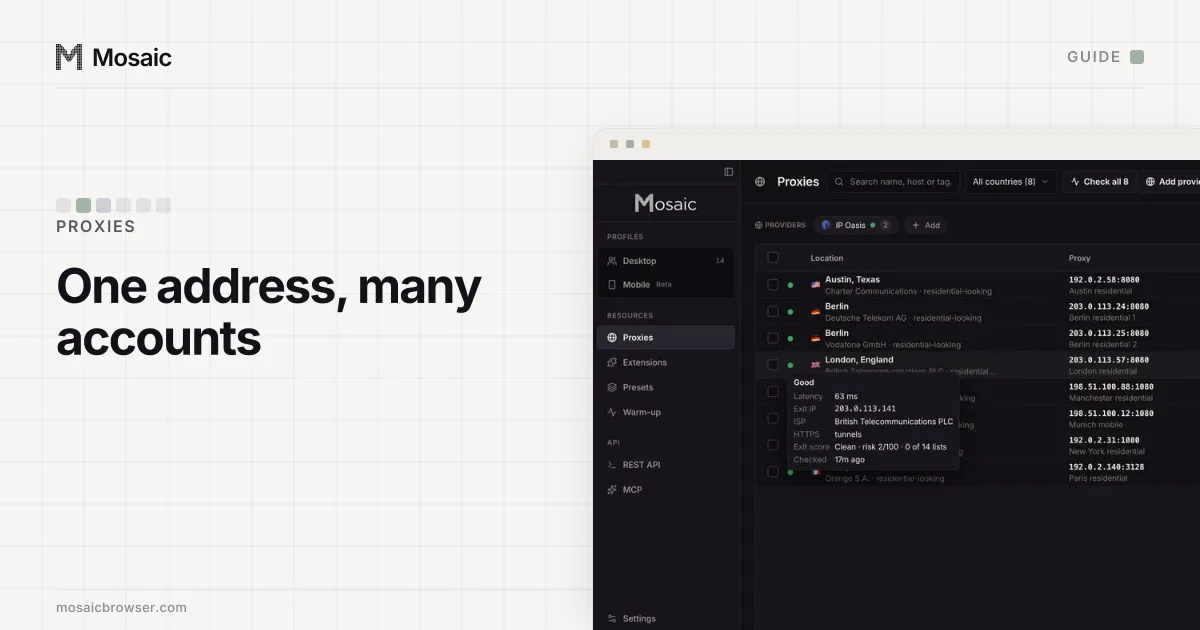
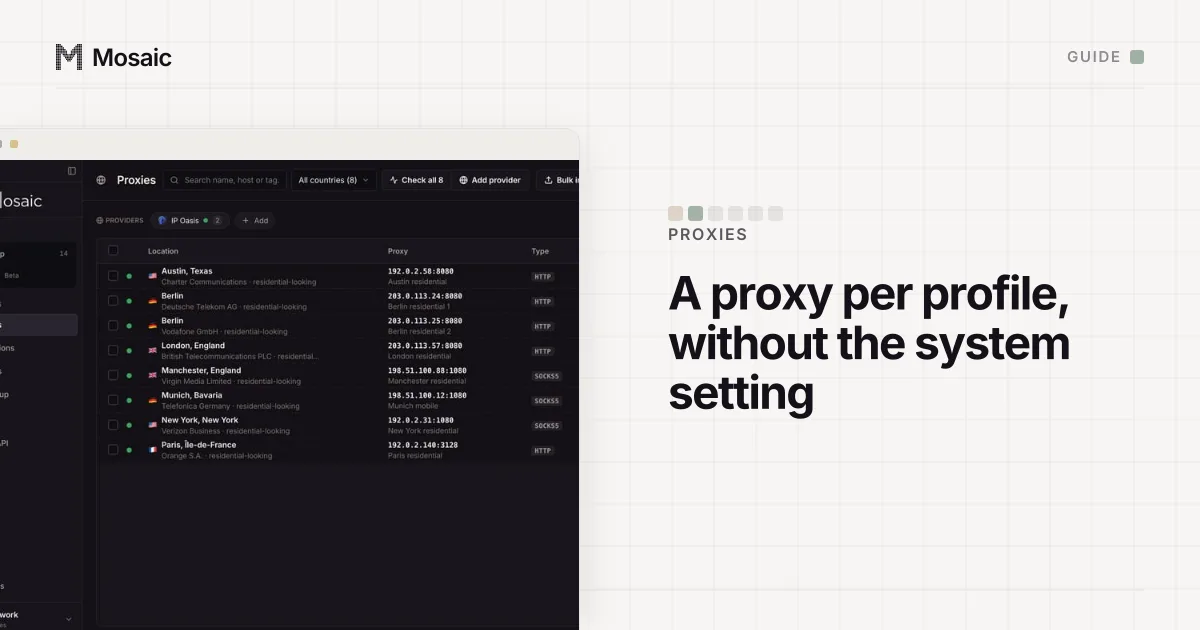
- For many profiles, add your seller once in Proxies › Add provider by pasting one gateway line. Every profile then mints its own session, so no two profiles share an exit by accident.
- Start the profile. Mosaic checks the proxy first and refuses to launch behind one that has not answered and tunnelled, saying which part failed.
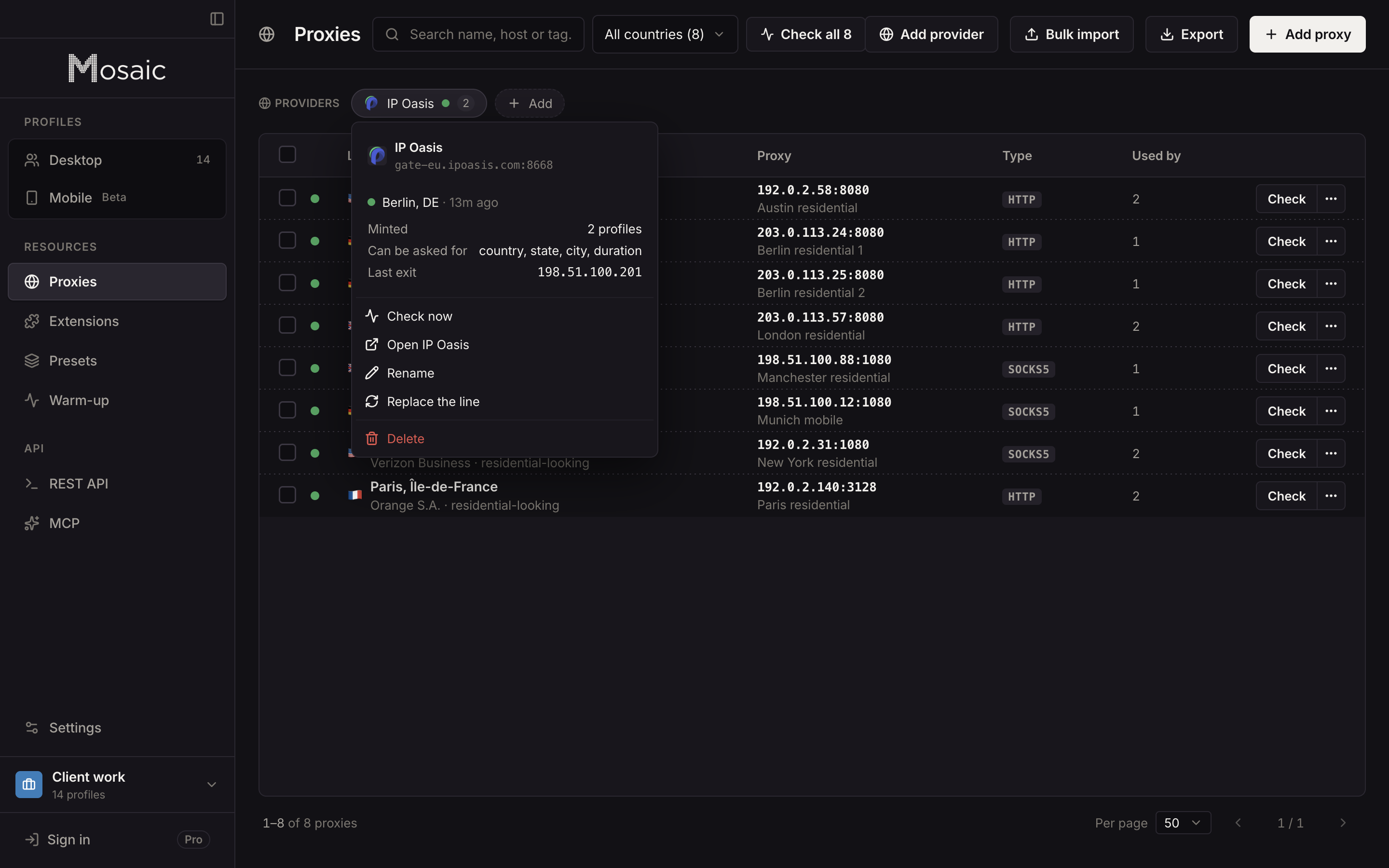
HTTP, HTTPS and SOCKS5 all take a username and password, because the sign-in goes through a small relay on your computer rather than through Chrome. With a proxy attached, WebRTC is stopped from sending UDP around it, and the profile's timezone, language and location are set from where the exit actually is. How the minting works, seller by seller, is on the proxy providers page.
Sources
- Chromium: Proxy support in Chrome (net/docs/proxy.md), read November 2, 2026
- Chromium: User Data Directory (docs/user_data_dir.md), read November 2, 2026
- Google Chrome Help: Manage Chrome with multiple profiles, read November 2, 2026