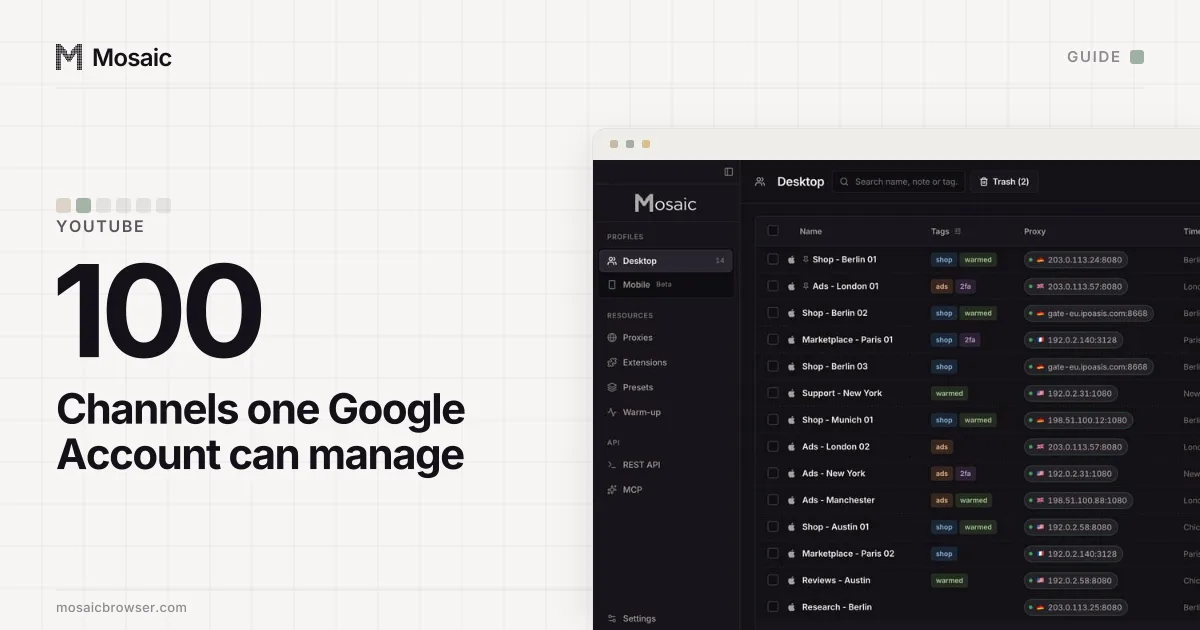
How you manage multiple YouTube channels depends on whose channels they are. Your own sit under your Google Account: one personal channel plus Brand Account channels, up to 100, and you move between them in two clicks. A client's channel should stay under the client's Google Account, with you invited in YouTube Studio. Then the job on your side is keeping several Google sign-ins from sharing one browser.
YouTube allows one Google Account to manage many channels, and it forbids using a second channel to get around a strike or a termination. Mosaic keeps accounts you are entitled to run apart; it does not change what a platform allows. Where the limit of 100 comes from, and why a new account may not reach it yet, is in how many YouTube channels can you have.
Switch between your own channels
YouTube's page on switching between channels is short, and its first rule is the one that matters: "On YouTube, you can only use one channel at a time."
- On youtube.com, click your profile picture in the top right.
- Click Switch account. The list shows the channels you manage and your Google Account itself.
- Click the channel you want. If you pick a Brand Account with no channel yet, YouTube offers to create one.
- Check the name and icon in the top right before you comment or upload.
A channel you were invited to through channel permissions may not be in that list. YouTube's answer is to go to studio.youtube.com and switch there. A Brand Account channel that is missing means your Google Account is not one of that Brand Account's managers.
Switching changes who you are everywhere on YouTube at once. A comment typed in a tab you opened an hour ago goes out as whichever channel you switched to last, which is the most common way a creator with a personal channel and a brand channel posts from the wrong one.
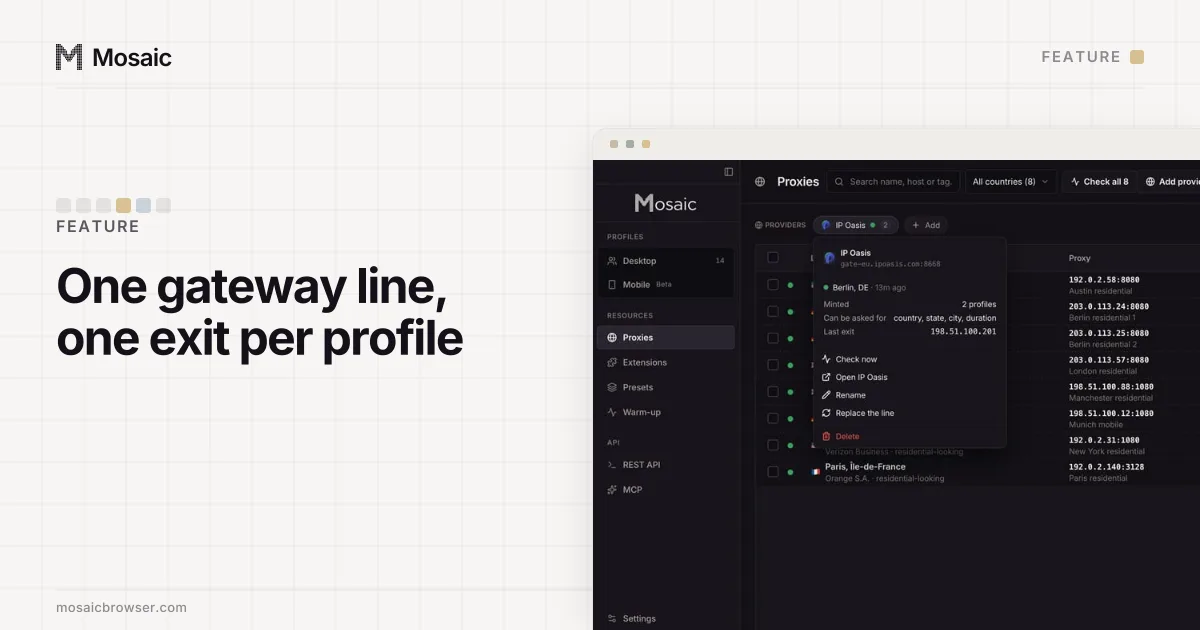
Paste one gateway line. Every profile mints its own exitIn Mosaic: Provider minting. One gateway line, a separate exit for every profile. Free holds 3 profiles. Pro is $49 a month for any number.
Mosaic is a desktop app
Email yourself the link and open it on your computer.
How it works: Provider minting
Give helpers access without a password
For an editor, a moderator or an agency, YouTube's answer is channel permissions, managed in YouTube Studio under Settings, Permissions, Invite. You enter their email and pick a role: Manager, Editor, Editor (Limited), Subtitle Editor, Viewer or Viewer (Limited). The invite expires after 30 days. YouTube calls this "safer than sharing your password", and it is, because the helper signs in with their own Google Account and you can remove them without changing anything of yours.
Channels still using Brand Account roles can move over. Only the Brand Account's primary owner can opt in to channel permissions, from Studio, Settings, Permissions, Move Permissions. One thing stays on the Brand Account side: transferring ownership, which needs you to opt back out first.
Why channels get mixed up on one computer
Every channel lives behind a Google sign-in, and a browser keeps one set of Google cookies per profile. Gmail, YouTube and Studio all read that same set. Two Google Accounts in one Chrome profile is what Google's account chooser does, and it works, but every tab can reach both and a link opened from an email can land in the wrong one. How far Google's own multiple sign-in goes is in how to sign in to multiple Gmail accounts at once.
A Chrome profile per Google Account fixes the cookies. It does not change what the machine reports, and YouTube's channel history, which decides when a channel gets advanced features, includes "Your method of connecting to Google services." For your own channels that costs nothing. For clients who should look like the separate businesses they are, it ties them to one desk.
Habits that keep several channels in good standing
Most trouble with several channels comes from what they publish. YouTube's feature-access page lists "Posting the same content repeatedly across one or more channels" among the things that delay or restrict access. Its spam policy adds comment spam, with the example "Posting identical or similar 'check out my channel' messages across hundreds of videos", and "Using coordinated 'sub-for-sub' schemes". Promoting your second channel in your first channel's videos is fine; flooding other people's comments with it is not.
Turn on two-step verification for every Google Account behind a channel. If those codes all live in one phone, the channels share a single point of failure. Keeping each setup key with its own account is covered in how to manage 2FA codes for multiple accounts.
How to manage multiple YouTube channels in Mosaic
Mosaic gives every account its own browser, with its own fingerprint, its own proxy exit and its own cookies, and keeps all of it on your computer. Profiles can claim macOS, Windows, Linux or Android, and the OS your own computer runs is the one that matches best.
- Make a project for each client or brand, so their profiles never share a list.
- Create one profile per Google Account, not per channel. Your own Brand Account channels can share your profile, because they share your sign-in.
- If a channel's audience is in another country, add a provider in Proxies by pasting one gateway line from your proxy seller. Mosaic mints a separate session for each profile, so no two profiles share an exit.
- Start the profile. Its proxy is checked first, and the browser does not open behind one that has not answered and tunnelled.
- Sign in to Google once. The cookies stay in that profile, so the next start opens YouTube Studio signed in.
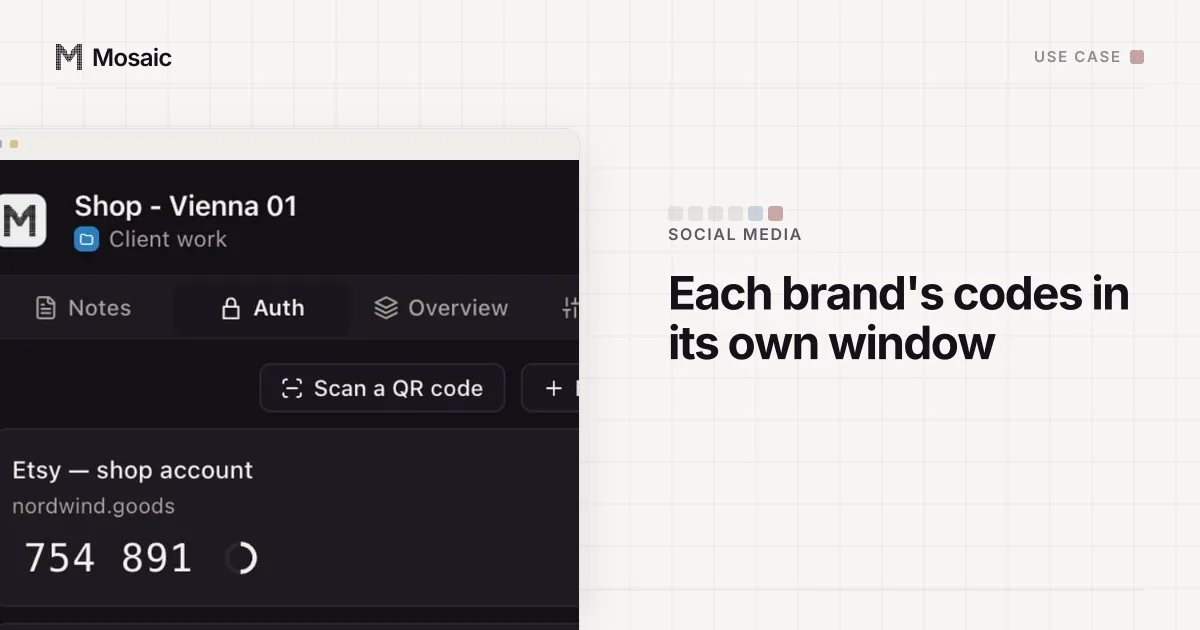
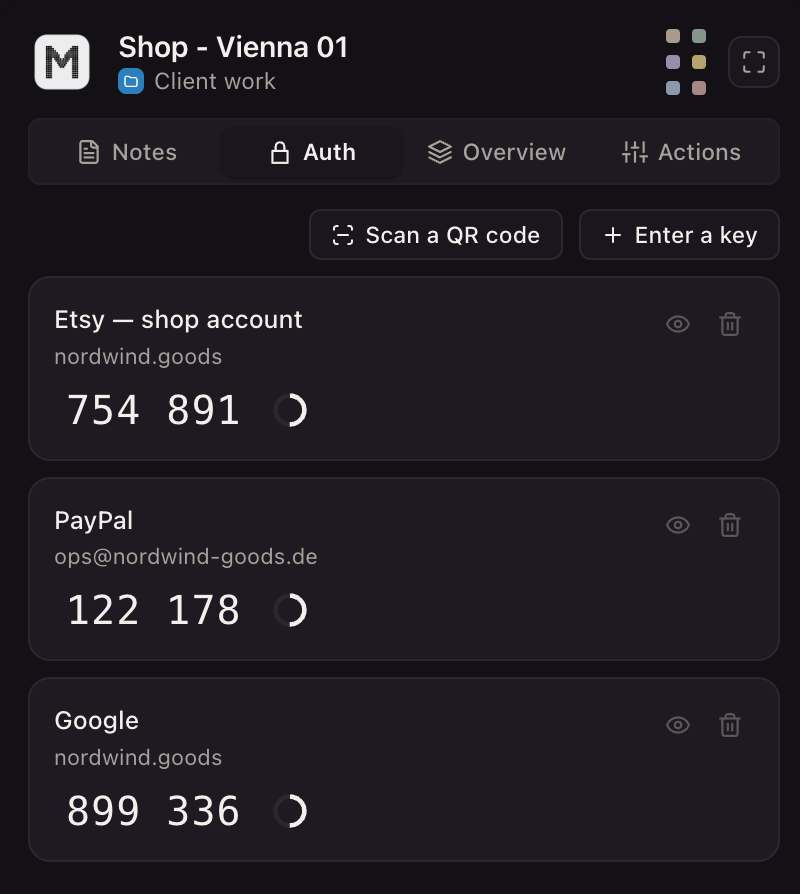
- Save the Google Account's two-step setup key in the profile's credentials. The companion inside that browser shows the code for that account only.
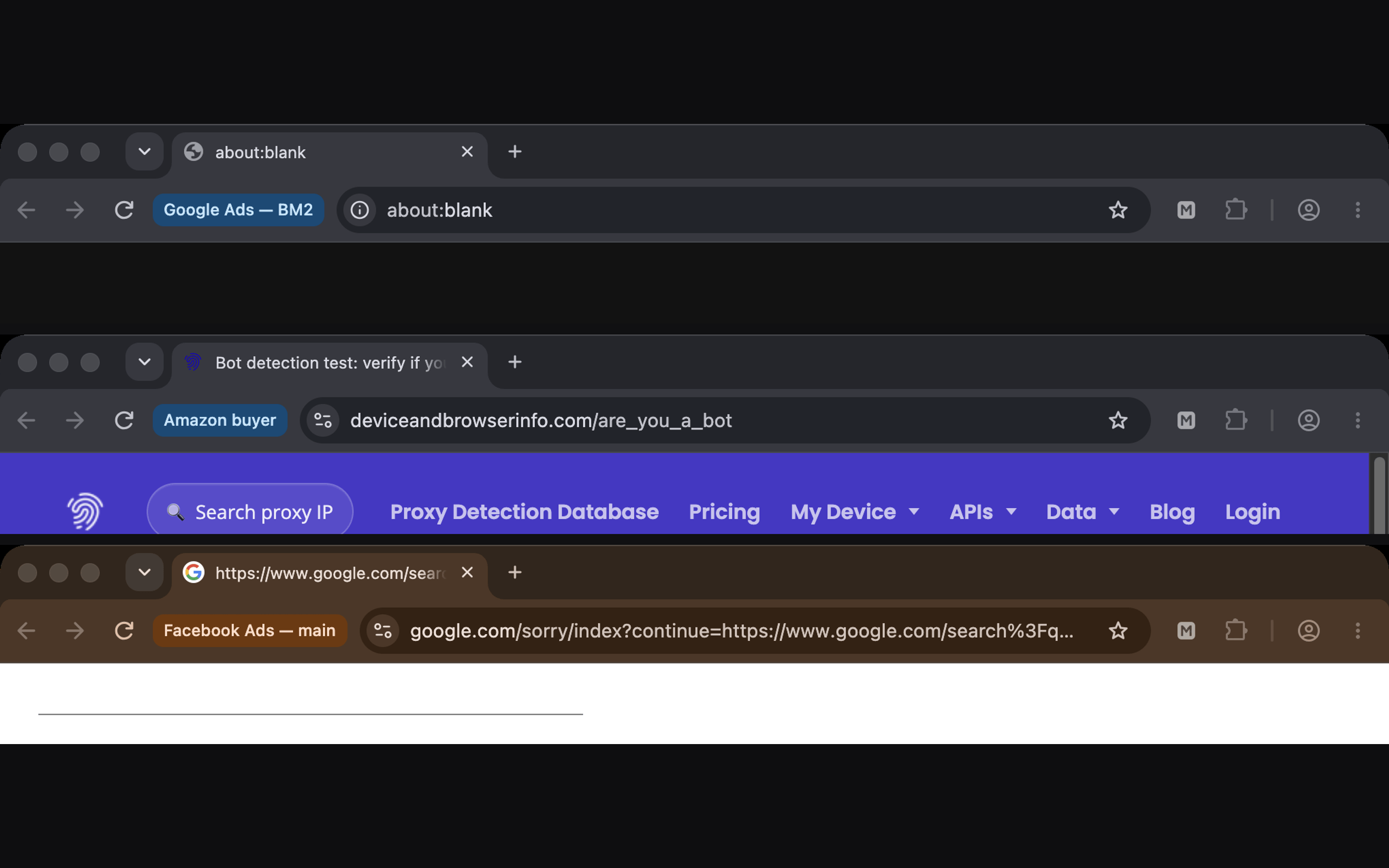
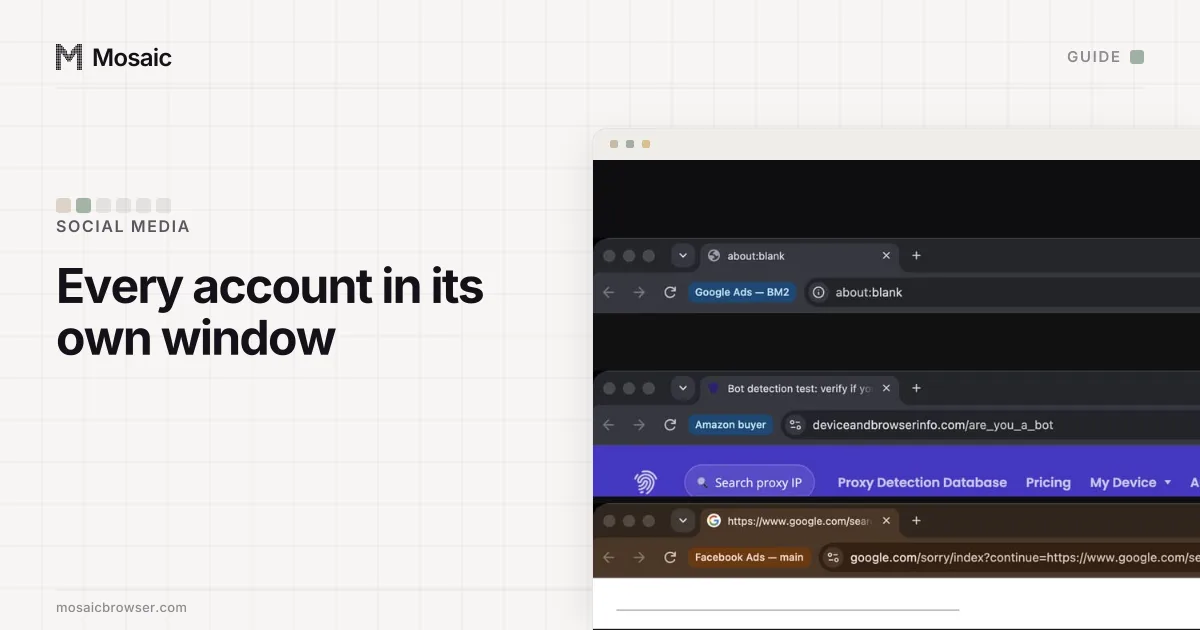
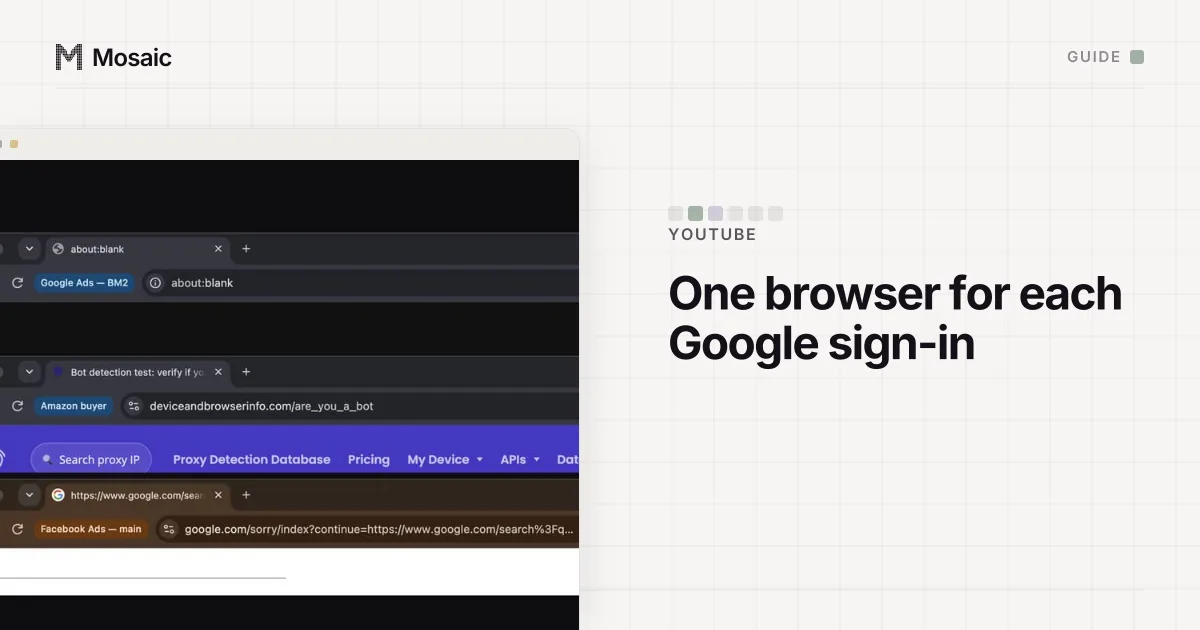
Select several profiles to start them together, then arrange their windows side by side, each with its profile's name in the title bar, so you can see which channel you are about to reply as. How a provider turns one gateway line into a separate exit per profile is on the proxy providers page.
Mosaic does not upload, schedule or comment for you. Free is 3 profiles and 10 profile creations; for an agency with a project per client, Mosaic for social media managers shows the set-up end to end.
Sources
- YouTube Help: Switch between channels on a Google Account, read November 2, 2026
- YouTube Help: Add or remove access to your YouTube channel with channel permissions, read November 2, 2026
- YouTube Help: Migrate from Brand Account user access to channel permissions, read November 2, 2026
- YouTube Help: Get access to intermediate and advanced features, read November 2, 2026
- YouTube Help: Spam policy, read November 2, 2026